
How to manage organization users
- Reading
- 2 mins
- Category
- Proton VPN for Business
As a Proton VPN for Business administrator, you can make changes to existing user accounts in your organization.
If you’re new to Proton VPN for Business, see our article on how to add new users to your plan.
- Edit a user’s name
- Upgrade a user to an administrator account
- Change a user’s password
- Sign a user out on all devices
- Remove a user from your organization
How to edit a user’s name
1. Sign in to account.proton.me and select the VPN app.
2. Go to Organization → Users.
3. Click the Edit button next to the user whose name you’d like to change.

4. Click inside the Name field and enter a new name.
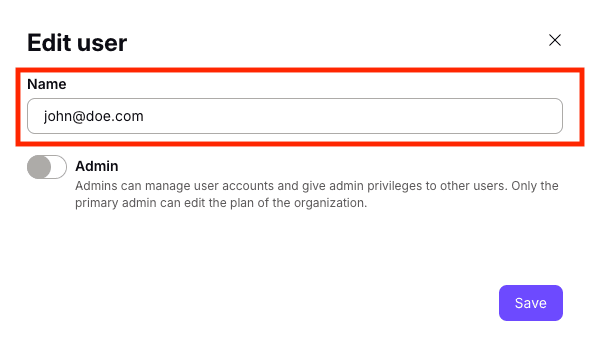
5. Click Save.
How to upgrade a user to an administrator account
1. Sign in to account.proton.me and select the VPN app.
2. In the sidebar, go to Organization → Users.
3. Click the Edit button next to the user you wish to upgrade. Enter your password to continue.
4. Toggle the Admin button on (or toggle it off to downgrade the user to a regular user account).

5. Click Save.
How to change a user’s password
1. Sign in to account.proton.me and select the VPN app.
2. In the sidebar, go to Organization → Users.
3. Select Change password from dropdown menu (⏷) next to the user whose password you’d like to change. Enter your password to continue.
4. Create a new password for the user and confirm by entering it a second time.
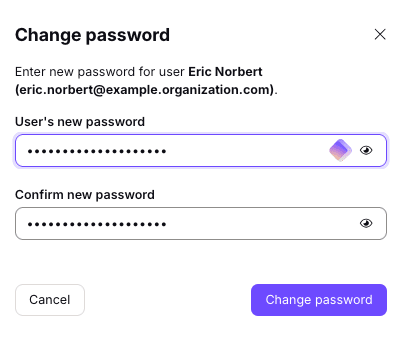
5. Click Save. Don’t forget to securely share the user’s new password with them.
Sign a user out on all devices
As a security measure, you may wish to sign a user out their Proton account on all devices they signed in on.
1. Sign in to account.proton.me and select the VPN app.
2. In the sidebar, go to Organization → Users.
3. Find the user who you want to sign out. Open the dropdown menu (⏷) and select Revoke sessions.
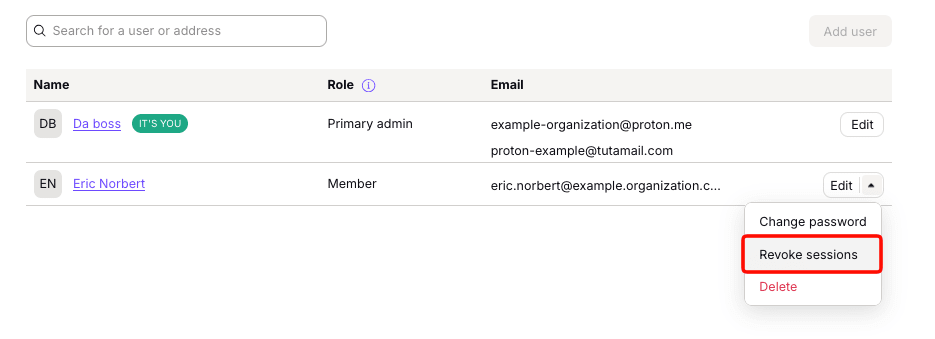
The user will be signed out from all devices.
How to remove a user from your organization
1. Sign in to account.proton.me and select the VPN app.
2. In the sidebar, go to Organization → Users.
3. Find the user who you want to remove. Open the dropdown menu (⏷) and select Delete. You’ll be asked to enter your own password to continue.
4. This will permanently delete the user’s account, email address, and all data on their account. If you’re sure you want to continue, enter the name of the user you’d like to remove, and click Delete user.

The user’s account has been permanently deleted. You can now use their license to add another user to your organization.