Puedes cancelar el envío de un correo en Gmail, pero solo durante un breve periodo de tiempo: 5 segundos por defecto, o hasta 30 si has aumentado antes el límite en los ajustes. Una vez que se cierra esa ventana, el correo electrónico se entrega y ya no puedes recuperarlo.
El botón Deshacer el envío sirve para esos correos electrónicos de los que te arrepientes en cuanto salen: una respuesta a todos que iba dirigida a una sola persona, una contestación brusca escrita desde la frustración o una propuesta enviada antes de que tu responsable le diera el visto bueno. Importa sobre todo cuando el correo electrónico contiene algo que no puedes recuperar, como una contraseña, datos bancarios o los datos personales de un cliente.
En esta guía, te explicamos:
- Cómo cancelar el envío de un correo electrónico en Gmail desde el ordenador y desde el móvil
- Cómo ampliar la ventana de cancelación de 5 a 30 segundos
- Qué hacer cuando la ventana se ha cerrado (incluso con el máximo de 30 segundos)
- Qué pueden recuperar todavía los administradores de Workspace
Cómo cancelar el envío de un correo electrónico en Gmail desde el ordenador
Siempre que actúes rápido, cancelar el envío de un correo electrónico en Gmail es fácil. Así se hace:
- Escribe un correo electrónico y haz clic en Enviar.
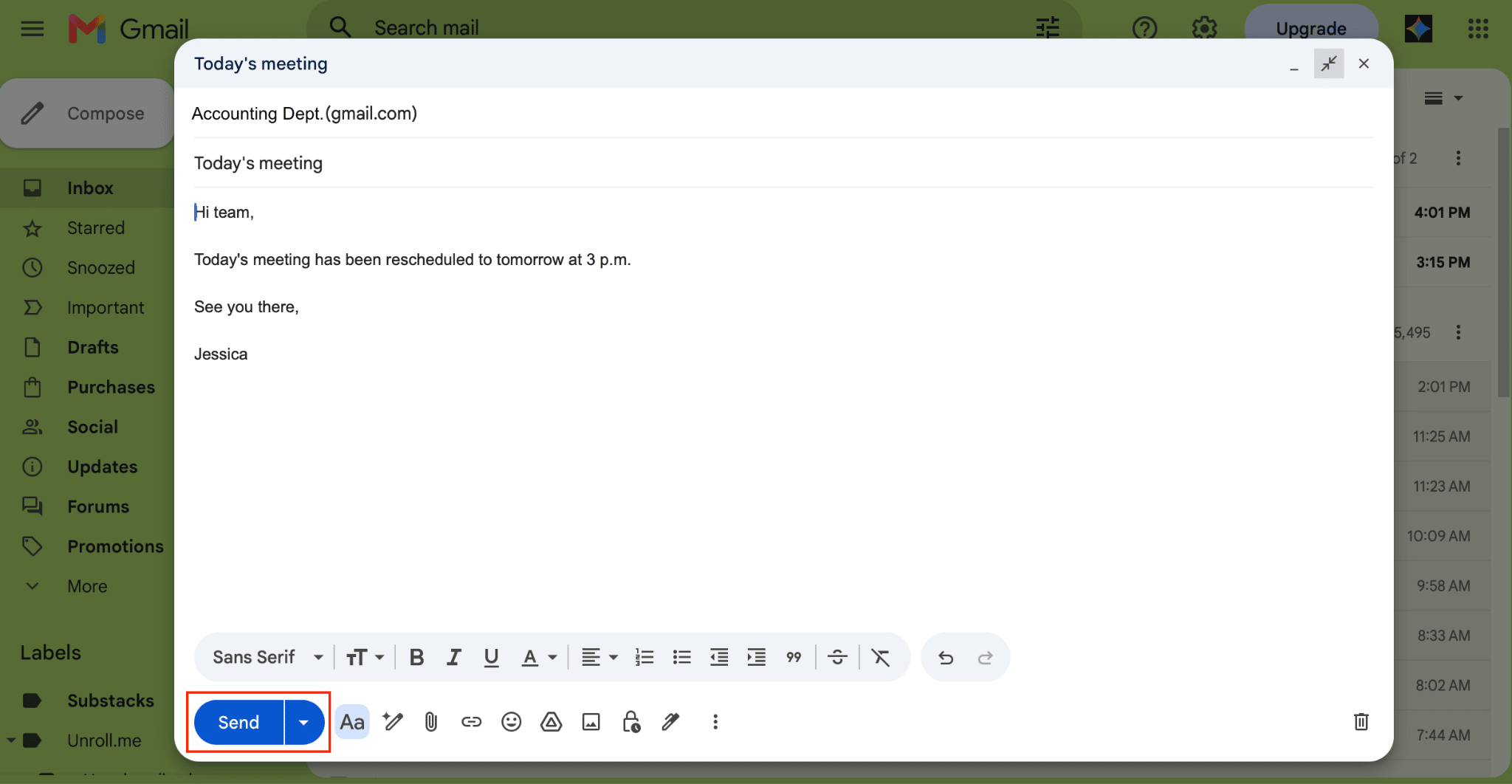
- Aparece una notificación de Mensaje enviado en la parte inferior izquierda. Haz clic en Deshacer.
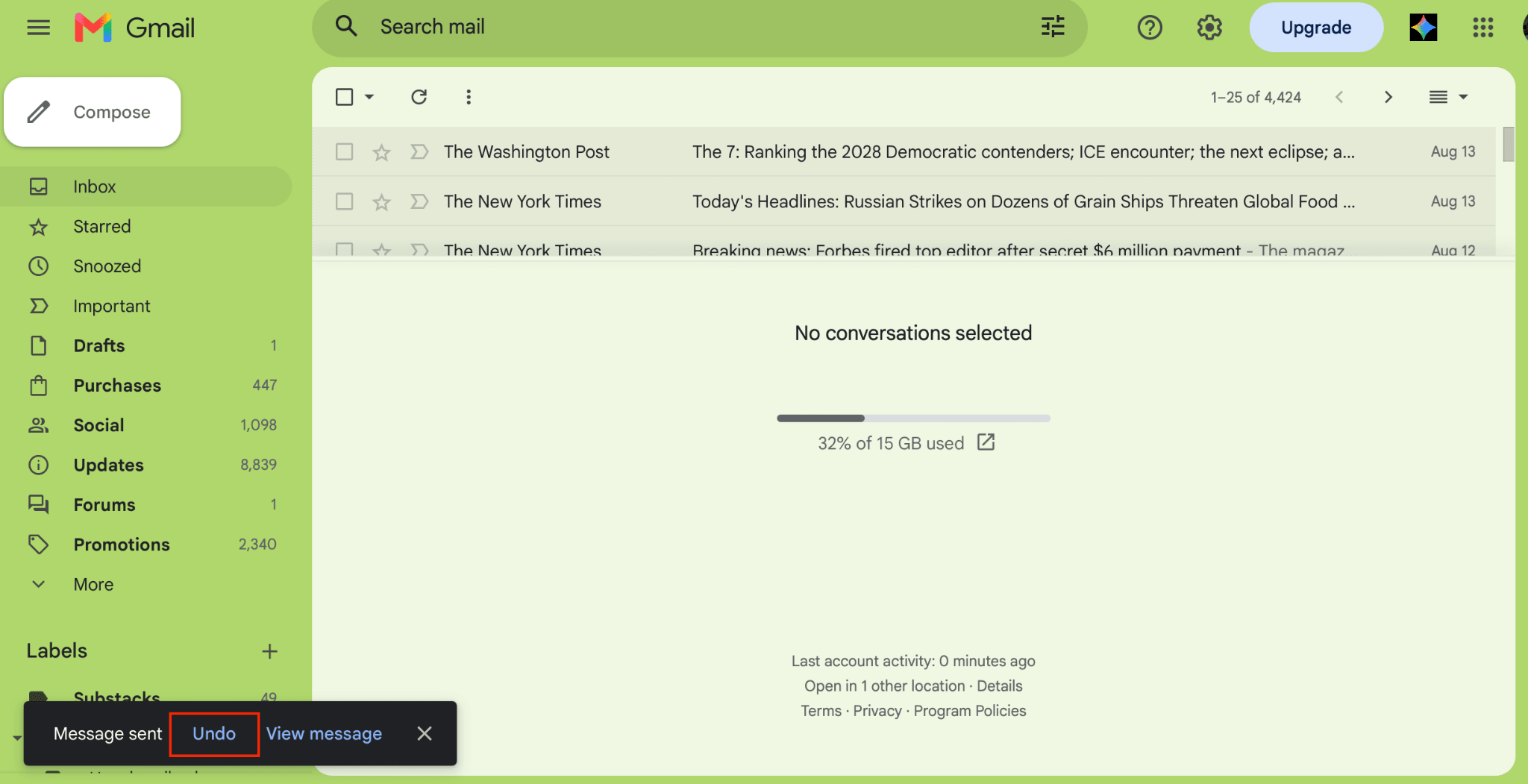
- El correo electrónico se vuelve a abrir como borrador. Haz los cambios y haz clic de nuevo en Enviar.
Cómo cancelar el envío de un correo electrónico en la aplicación móvil de Gmail (Android e iPhone)
- Abre la aplicación móvil de Gmail.
- Redacta el mensaje y pulsa Enviar.
- Pulsa Deshacer en la parte inferior derecha.
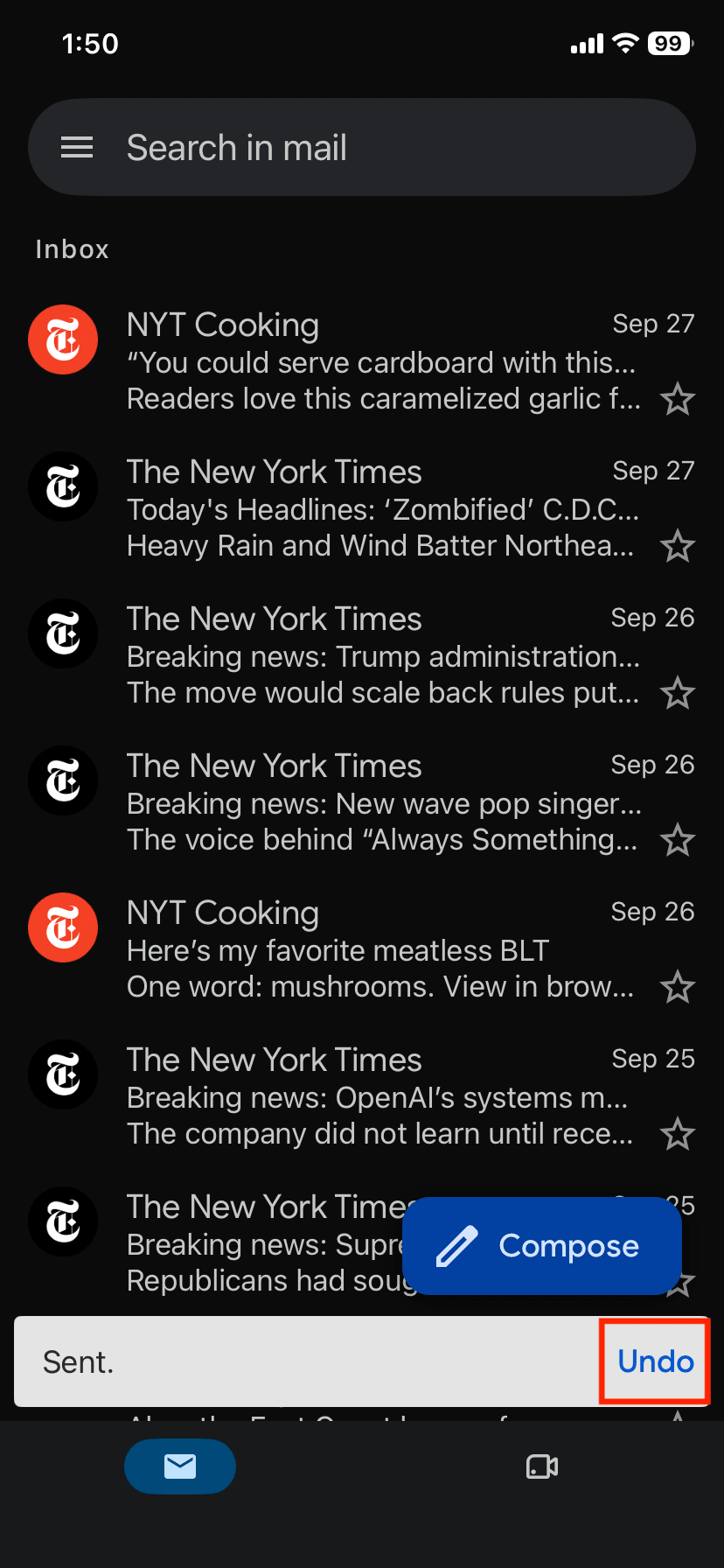
Al igual que en el ordenador, el correo electrónico se vuelve a abrir como borrador. Haz los cambios y haz clic de nuevo en Enviar.
Cómo cambiar el tiempo de Deshacer el envío en los ajustes de Gmail
- Abre Gmail y haz clic en Ajustes ⚙ → Ver todos los ajustes.
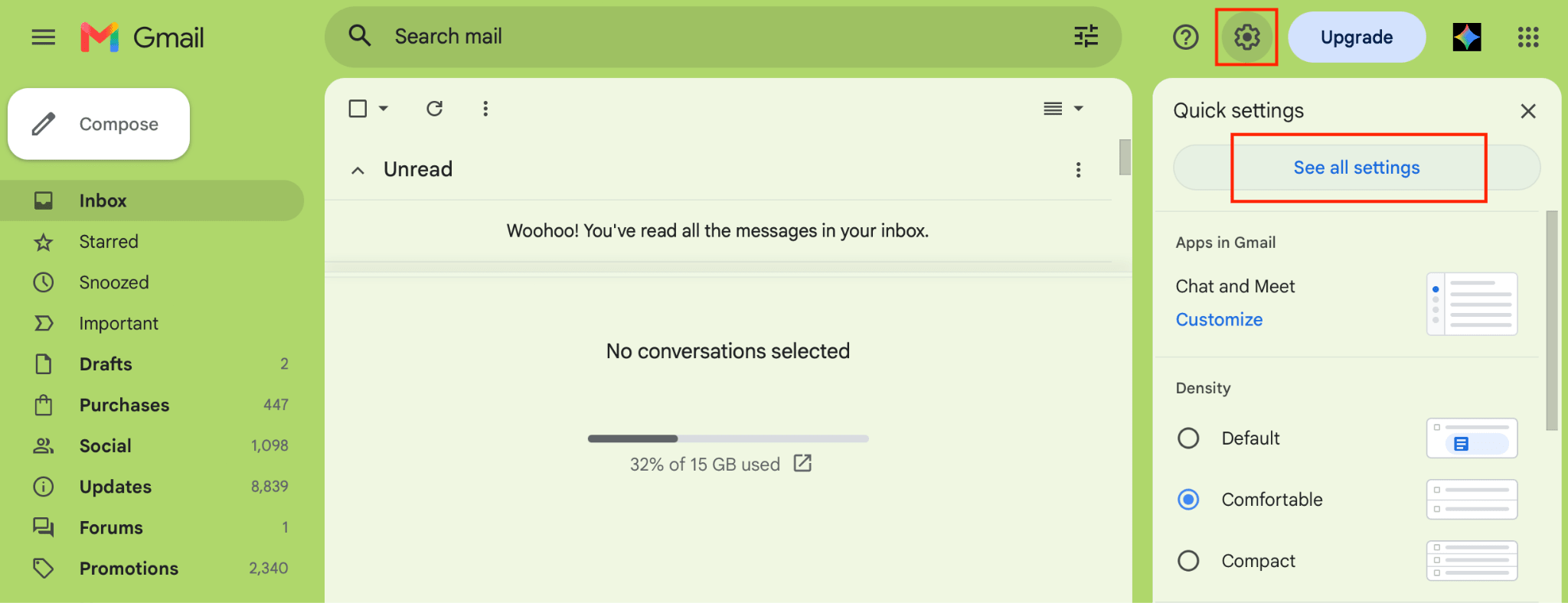
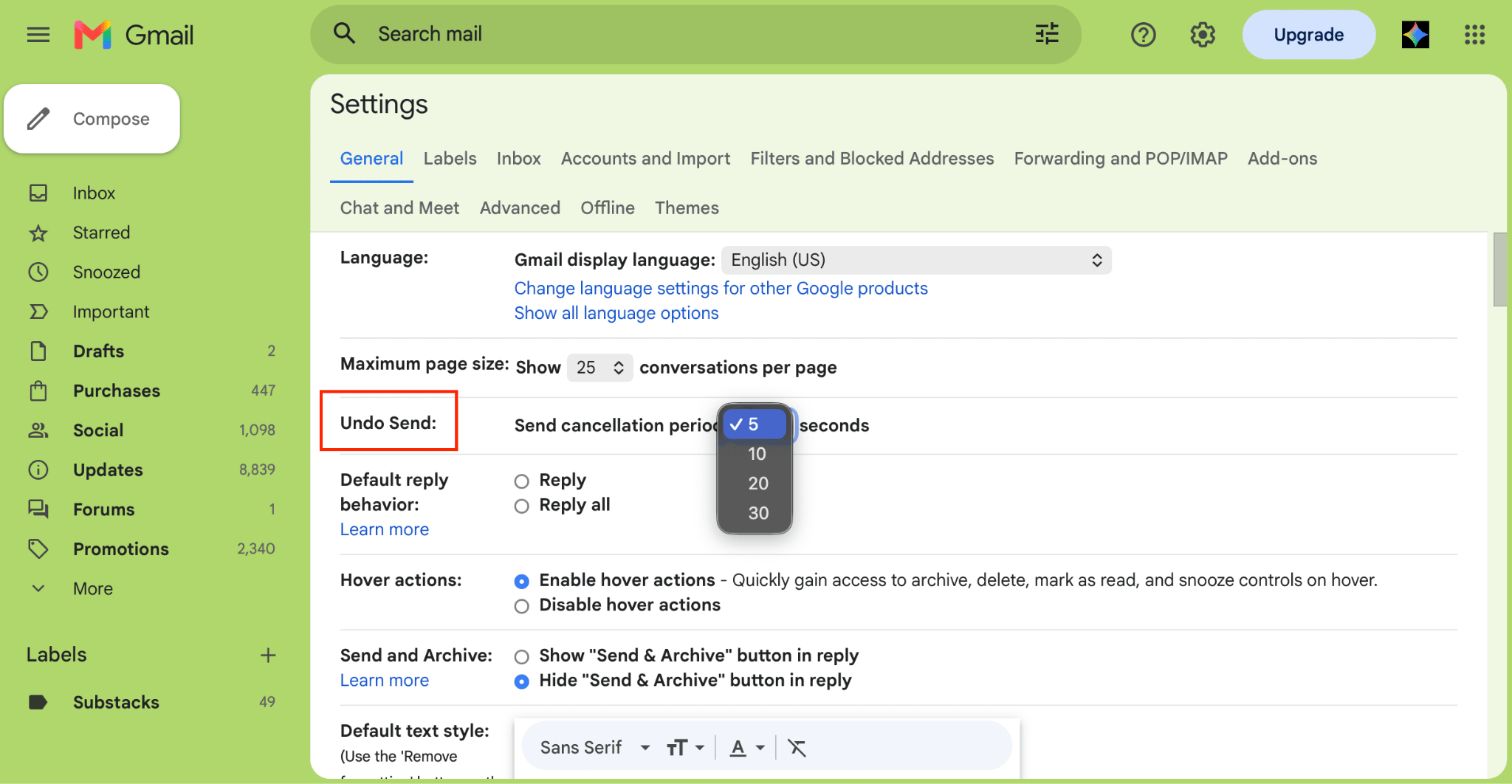
- Busca la pestaña General y desplázate hasta Deshacer el envío. Elige un periodo de cancelación de 5, 10, 20 o 30 segundos (por defecto, 5 segundos).
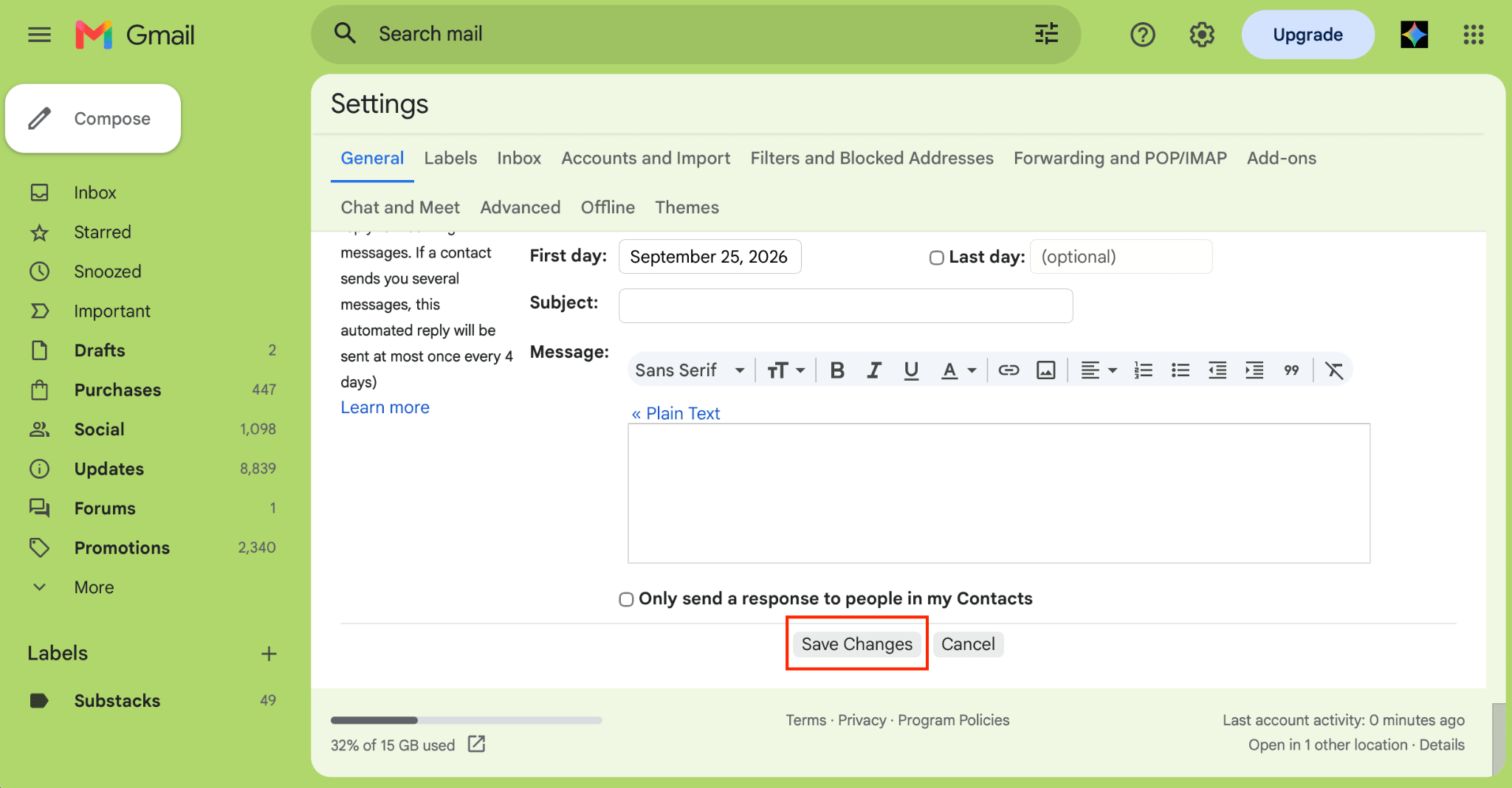
- Desplázate hasta abajo del todo y haz clic en Guardar cambios.
Si sueles detectar errores después de enviar, configúralo en 30 segundos. El único coste es que cada correo electrónico llega unos segundos más tarde.
Cambiar el ajuste Deshacer el envío de Gmail en la web no afecta al móvil, donde la ventana es de unos 5-10 segundos.
Qué hacer si has dejado pasar la ventana de Deshacer el envío
No puedes recuperar un correo electrónico ya entregado, así que el objetivo pasa de deshacerlo a limitar lo que ocurre después. Tienes varias opciones para proceder.
- Escribe directamente a los destinatarios y pídeles que eliminen el mensaje y te envíen confirmación cuando lo hayan hecho. Es incómodo, pero funciona cuando se trata de una persona o de un grupo pequeño de colegas.
- Si el correo electrónico no ha salido de la empresa, ponte en contacto de inmediato con el administrador de Workspace, ya que todavía puede eliminarlo de los buzones internos con la herramienta de investigación de seguridad. Después, actúa sobre el contenido en lugar de dejarte llevar por la vergüenza.
- Si has enviado una contraseña, una clave de API o un código de recuperación de cuenta, revócalos y sustitúyelos de inmediato en lugar de confiar en que alguien prometa olvidarlos.
- Si has adjuntado los datos personales de un cliente, avisa ese mismo día a la persona responsable de privacidad de la empresa, aunque todavía no haya pasado nada evidente.
- Por último, vuelve a enviar lo que querías enviar en realidad, con una corrección de una línea y sin disculpas largas.
Cómo deshacer correos electrónicos en Gmail con cuentas de empresa
Las cuentas de Google Workspace tienen la misma función Deshacer el envío que Gmail personal, con el mismo máximo de 30 segundos. Los usuarios de empresa tampoco disponen de un botón de recuperación.
Los administradores de Workspace disponen de una opción adicional de investigación de seguridad, que pueden usar para localizar un mensaje y eliminarlo de los buzones de Gmail de la organización.
Si has enviado un correo electrónico a la persona equivocada:
- Ponte en contacto lo antes posible con el administrador de IT o de Workspace.
- Facilítales el asunto, los destinatarios y la hora a la que lo enviaste, para que puedan localizar el mensaje.
- El administrador busca el mensaje con la herramienta de investigación de seguridad y lo elimina de los buzones de los destinatarios.
Esto solo funciona con destinatarios dentro de la organización. La herramienta actúa sobre los buzones de Gmail de la propia empresa, por lo que una copia enviada a una dirección externa permanece en el servidor de ese destinatario.
Concédete tiempo para detectar errores y protege lo que envías
Proton Mail usa el mismo enfoque de envío diferido, con Deshacer el envío activado por defecto durante 10 segundos (el doble que en Gmail) y una ventana ajustable de hasta 20 segundos. Además, a diferencia de Gmail, el ajuste se aplica tanto en la web como en el móvil.
Proton Mail te da más control sobre lo que ocurre con tus mensajes. Los correos electrónicos que envías a otros usuarios de Proton o a direcciones compatibles con PGP (un estándar abierto para el cifrado de extremo a extremo) están cifrados de extremo a extremo, incluidos el cuerpo del mensaje y los archivos adjuntos.
Para el resto, puedes añadir protección con contraseña, de modo que solo tú y tu destinatario podáis leer el correo electrónico y su proveedor de correo electrónico no pueda. La bandeja de entrada se almacena con cifrado de acceso cero y puedes configurar la caducidad de los mensajes.
Si decides cambiar de Gmail, Easy Switch importa el historial de conversaciones, reenvía los mensajes nuevos de Gmail a tu cuenta de Proton y te permite seguir enviando desde tu dirección de Gmail en Proton Mail hasta que decidas dejar Gmail atrás.
Preguntas frecuentes sobre cómo cancelar el envío de un correo electrónico en Gmail
No. Gmail solo permite deshacer el envío de un correo durante un máximo de 30 segundos, según los ajustes. Una vez transcurrido ese tiempo, el mensaje se ha entregado realmente y ya no se puede recuperar.
No. Una vez que Gmail entrega un mensaje, solo el destinatario puede eliminar su copia. Puedes eliminar el mensaje de la carpeta Enviados, pero eso no lo elimina de la bandeja de entrada del destinatario.
Sí. Eliminar de la cuenta un correo enviado solo elimina la copia propia; el destinatario puede seguir leyendo la suya a menos que la elimine.
No. La función Deshacer envío de Gmail detiene el mensaje antes de que se entregue, así que el destinatario no recibe el correo ni una notificación de que lo has cancelado.