Google runs on an ad-based business model, with its parent company Alphabet generating more than 70% of its total revenue from online advertising. The problem is that targeted advertising becomes more valuable when it is backed by more data.
And that comes with a steep price: your privacy.
What you search for, where you go, what you watch, which apps you use, and the websites you visit are all valuable signals to Google. If you find that level of data collection intrusive, tightening your Google privacy settings is a good place to start.
Advertising is not the only reason to pay attention to how Google handles your data. In 2026, Google changed its Search privacy controls(new window) so that saved media — including images, files, and audio or video recordings uploaded through services such as Search, Lens, Translate, and Maps — could be used to develop and improve its AI models (such as Gemini) unless you opted out.
Google privacy settings are scattered across several places, and changing one setting doesn’t necessarily stop data collection elsewhere. This guide walks through the Google Account, Android settings, and Google Chrome settings worth changing to reduce how much activity Google saves, links to you, and uses for advertising, personalization, and AI development.
- How to lock down your Google privacy settings
- What lawsuits reveal about Google privacy settings
- DeGoogle your life, starting with email
How to lock down your Google privacy settings
Here’s how you can control how much Google knows about you by configuring the default Google Account settings and Android OS permissions.
If you use a Google Workspace account for work or school, your organization may manage or restrict some account and device settings. How much control you have depends on whether you’re using a personal device with a work profile or a fully managed company or school device.
Google Account privacy settings
Your Google Account ties most of your activity with Google’s servers, whether you’re watching something on YouTube(new window), sending an email using Gmail, or searching restaurants on Google Maps. It may also be using your emails, files, and photos to profile you. The settings below determine how much of that data gets saved when you’re signed in to Google, for how long, and what it’s used for.
Turn off Personalize Search
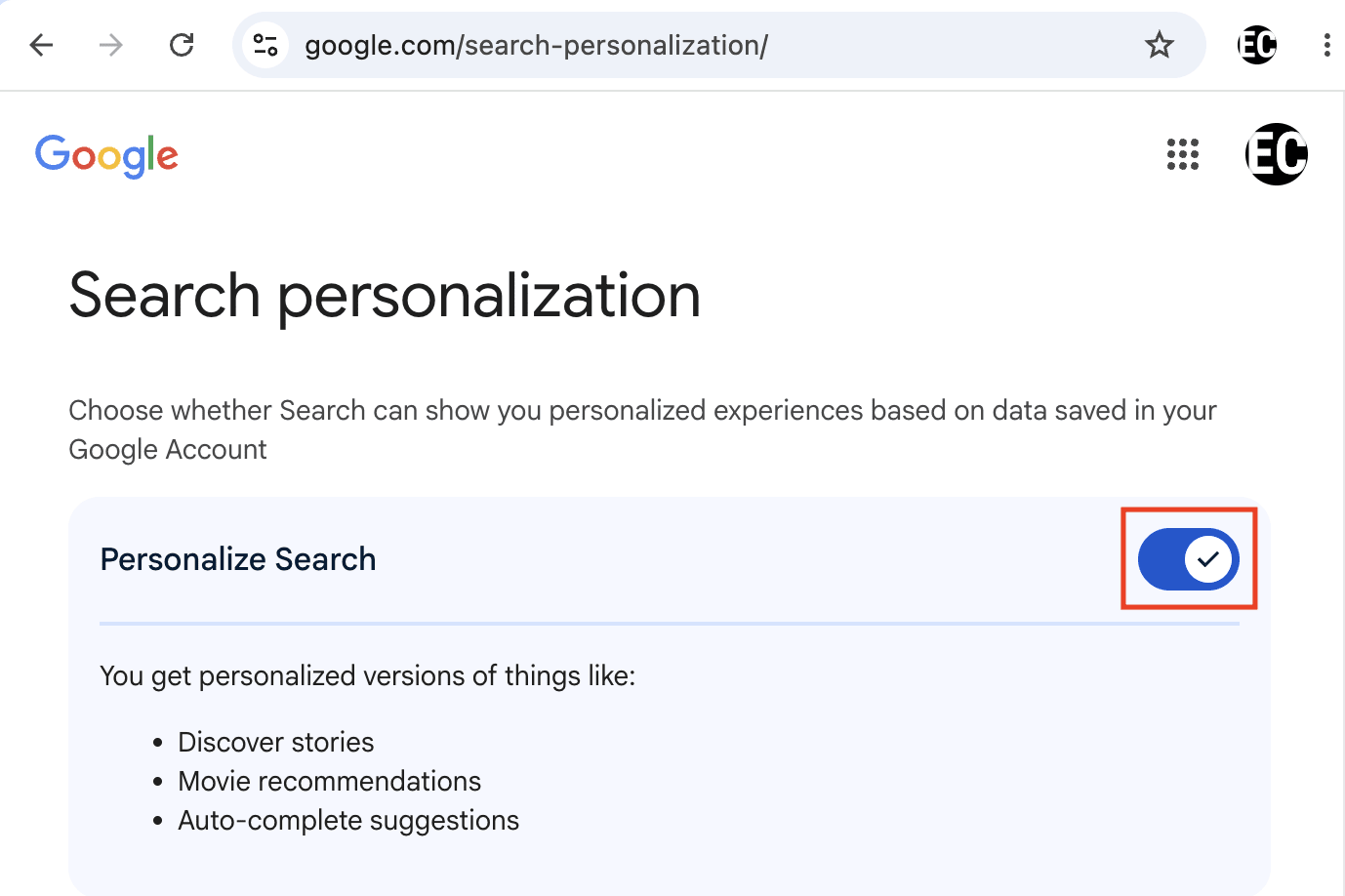
By default, Google shows your personalized results in Search based on data saved in your account, which can be used for things like auto-complete suggestions. In Data & privacy, select Personalize Search (google.com/search-personalization/) and toggle off Personalize Search for a more private experience.
If you feel like Google Search is too intrusive, consider these European search engines.
Turn off Web & App Activity
Web & App Activity is a feature that logs Google search history, websites visited via Chrome, and app usage, feeding into Google’s ad and recommendation systems. Go to Data & privacy → Web & App Activity (myactivity.google.com/personalization/settings/waa), click Turn off → Turn off and delete activity, and deselect everything under Subsettings.
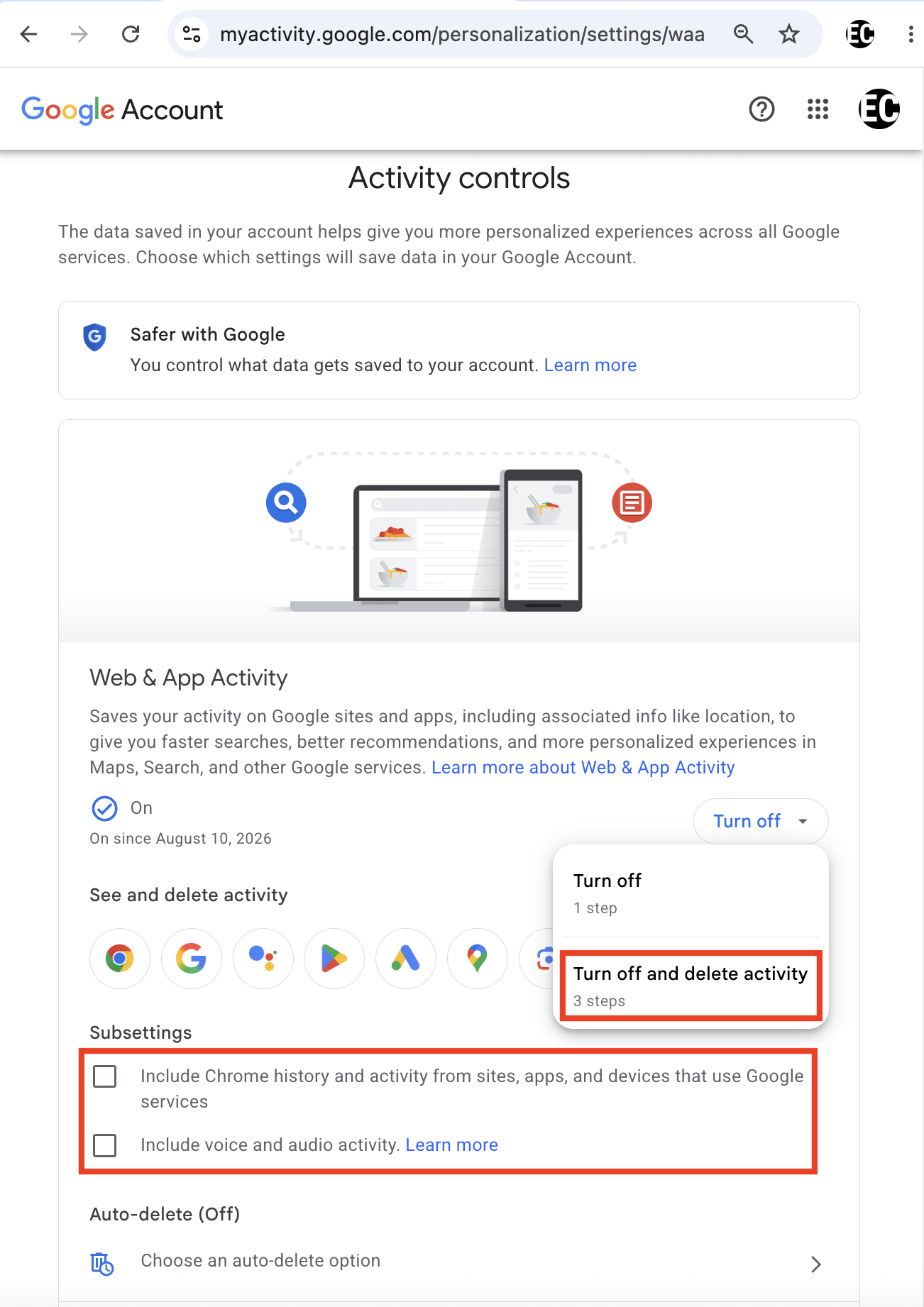
If you prefer to keep Web & App Activity on but still limit how long Google holds onto your data, click Choose an auto-delete option instead of Turn off and pick a window between 3, 18, and 36 months. If you’re looking for an alternative to Google Chrome, consider switching to a European web browser or explore our selection of the best browsers for privacy.
Turn off Search Services History and Save Media
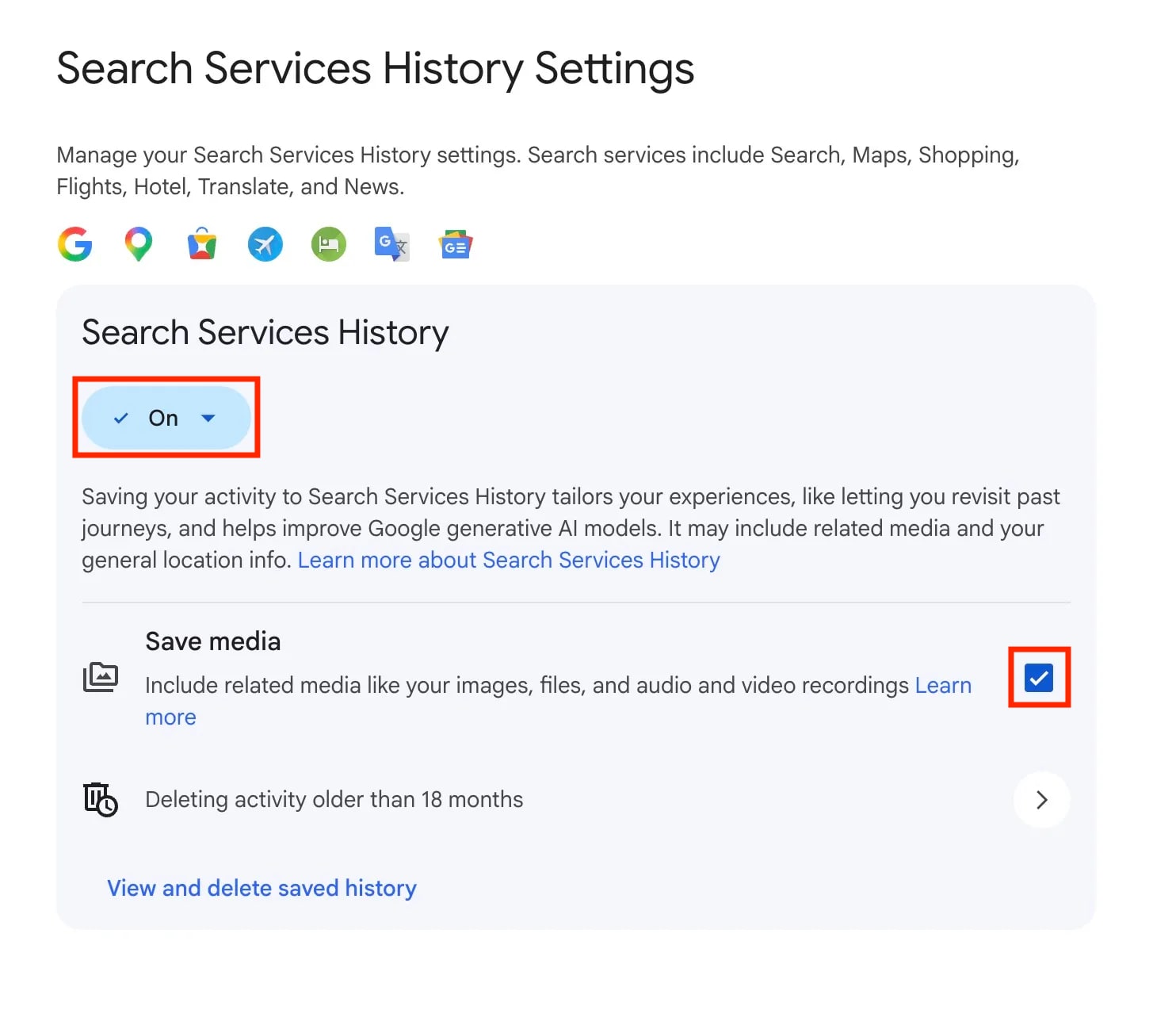
In June 2026, Google split what used to be part of Web & App Activity into two separate settings: Search Services History and Search Services Personalization. This covers Search, Lens, Translate, Maps, Shopping, Flights, Hotels, and News — and by default, media you upload through these (photos snapped for a Lens search, voice recordings from Search Live or Translate) can be saved and used to train Google’s AI models unless you opt out.
If you already turned off Web & App Activity expecting it to cover Search, this update means it no longer does.
To stop this, go to Data & privacy → Search Services History (myactivity.google.com/search-services/settings), uncheck Save Media, and switch off Search Services History.
Turn off YouTube History
Activity involving the videos you watched or music you played on YouTube is saved separately. Go to Data & privacy → YouTube History → Saving your YouTube history (myactivity.google.com/product/youtube/controls), click Turn off, and select Manage history → Delete → Delete all time.
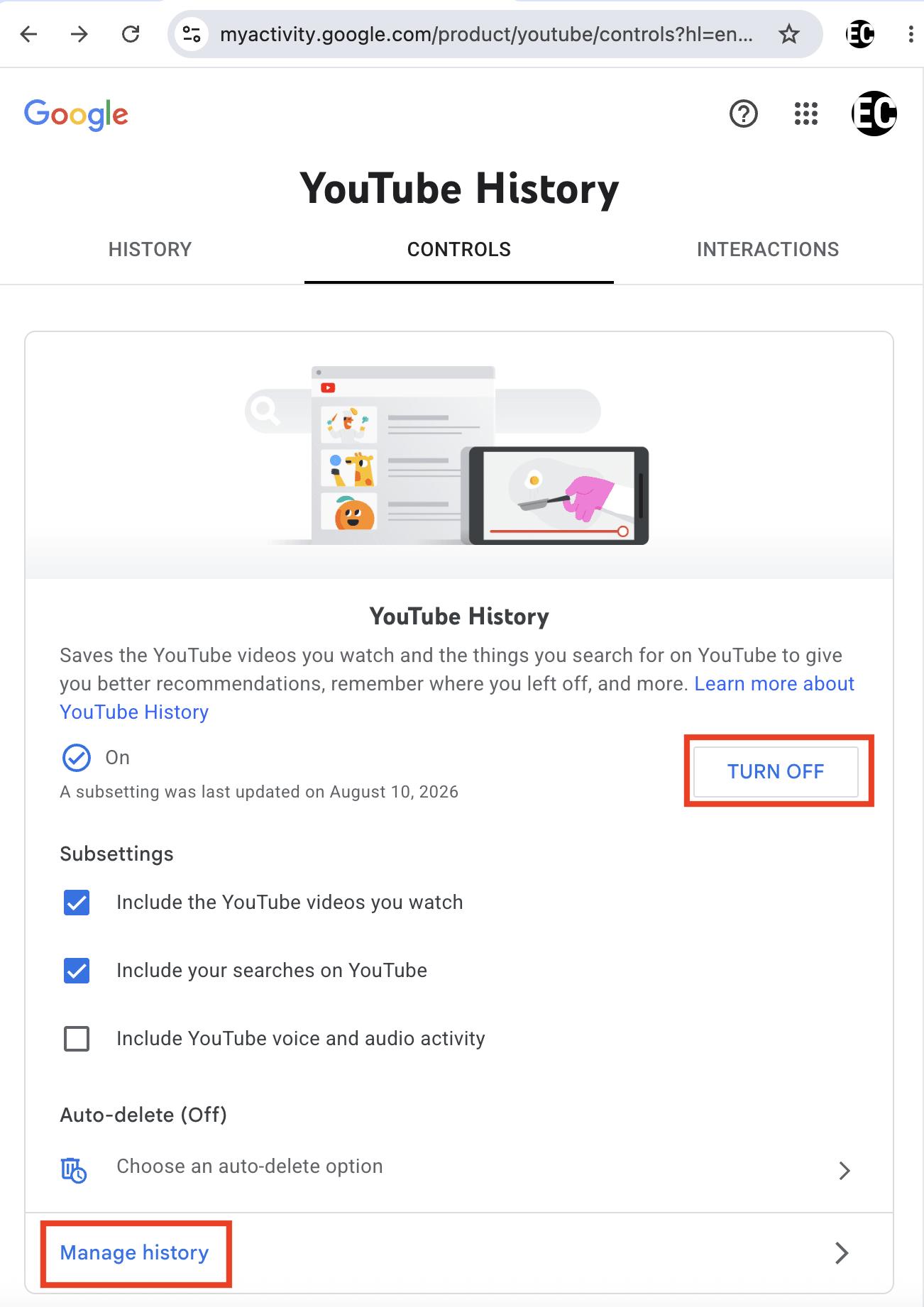
If you prefer to keep YouTube History on on but still limit how long Google holds onto your data, click Choose an auto-delete option instead of Turn off and pick a window between 3, 18, and 36 months.
Turn off Location History / Timeline
Google moved Timeline to be stored on-device by default in late 2024, a change made partly in response to the location tracking lawsuits. To disable Google location history and prevent the company from learning your routes, go to Data & privacy → Timeline (myactivity.google.com/activitycontrols?settings=location), click Turn off → Turn off and delete activity, and deselect everything under Subsettings.
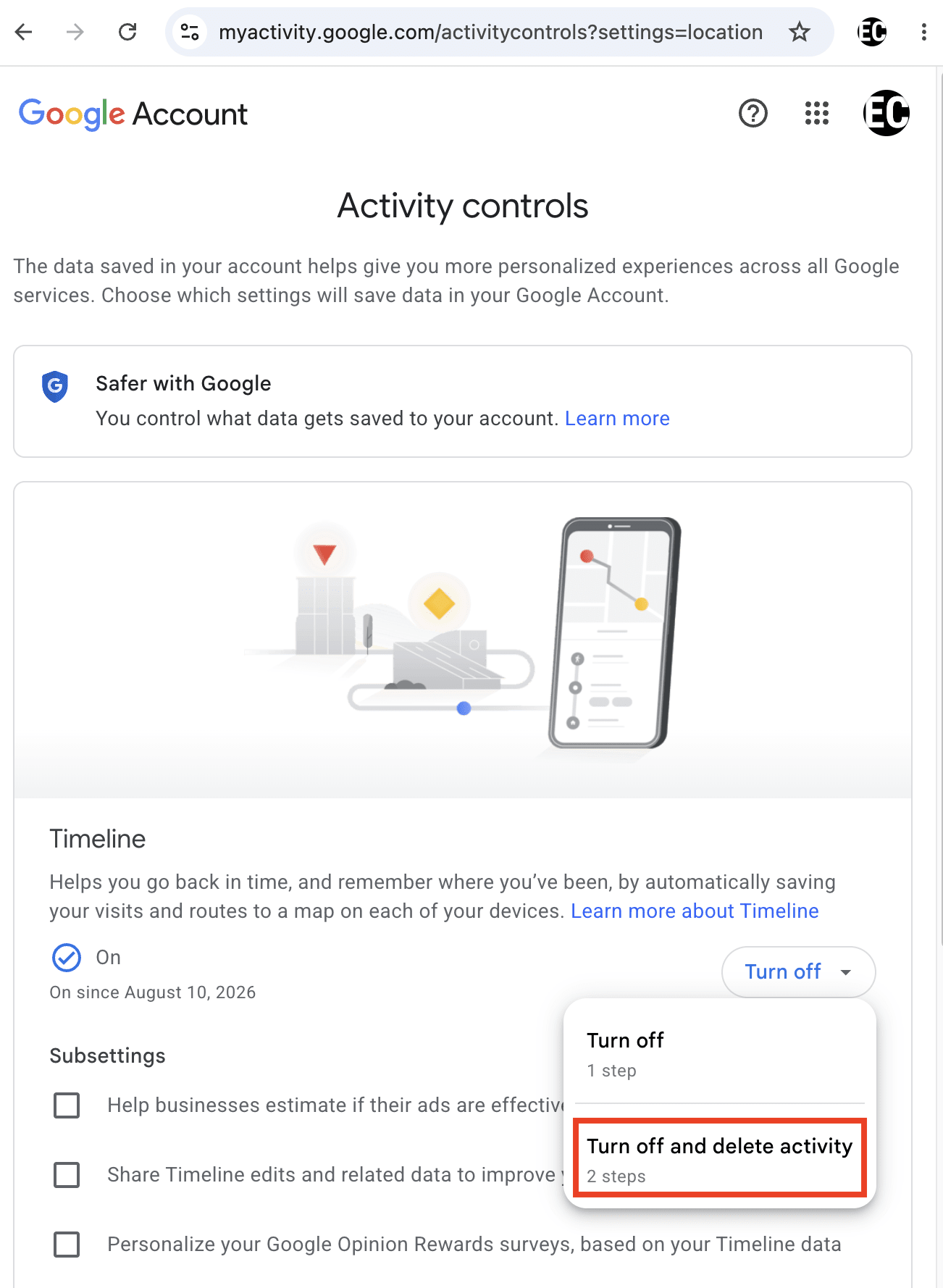
If you prefer to keep Timeline on on but still limit how long Google holds onto your data, select Auto-delete instead of Turn off and choose a window between 3, 18, and 36 months.
Turn off My Ad Center
This controls how Google personalizes ads on services such as Search and YouTube. Go to Data & privacy → My Ad Center (myadcenter.google.com/controls) and click On → Turn off. Keep in mind that ads are not removed but less tailored to you.
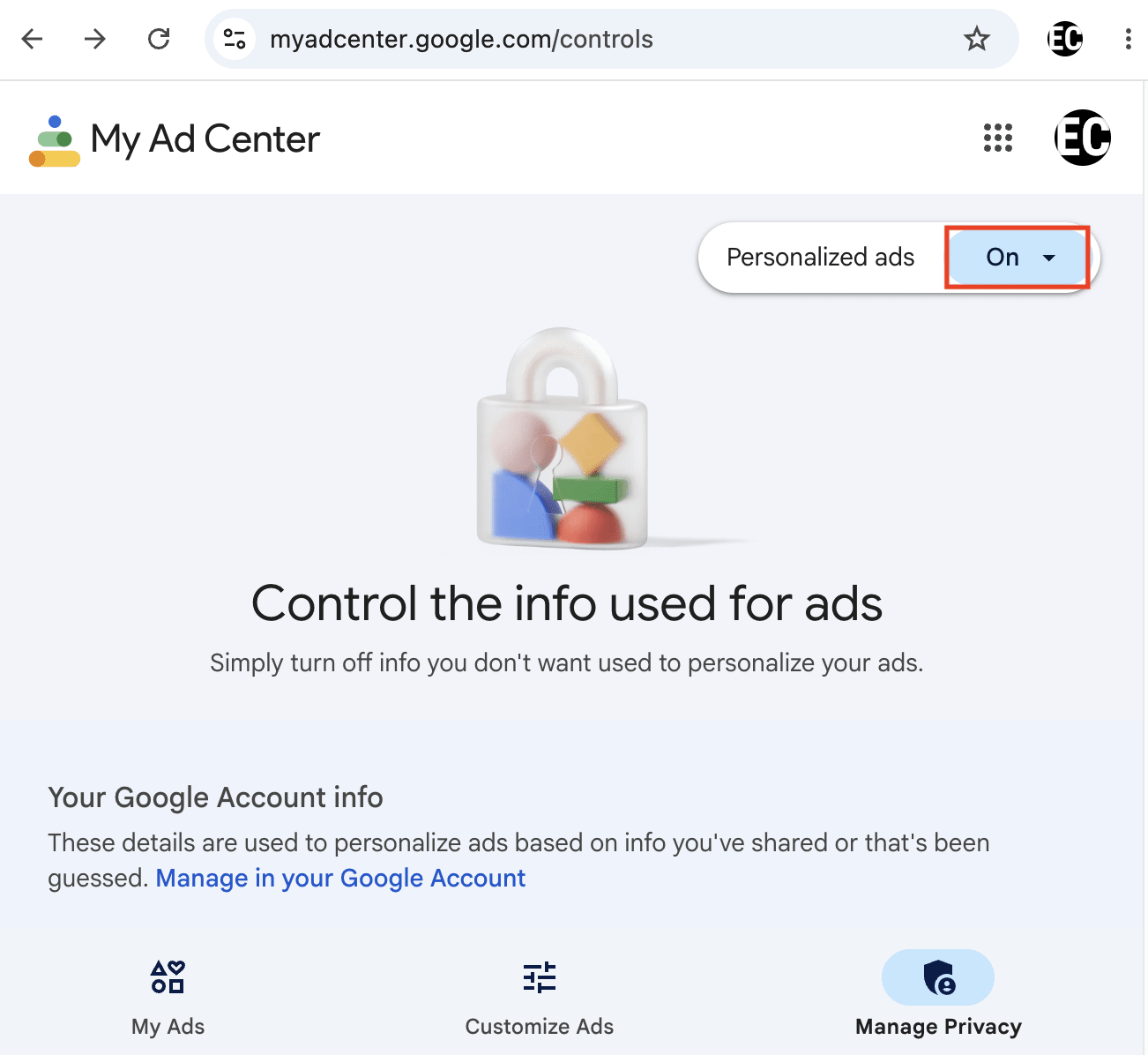
Turning off this setting also disables personalized ads on Google’s partner network. It’s the setting called Personalized ads settings — the large set of non-Google sites and apps that show Google-served ads.
Turn off Linked Google Services
By default, all Google services can interact with each other and share activity data, including Search, YouTube, Chrome, Maps, Google Play, Shopping, and Google Ads. Under the EU Digital Markets Act, you can unlink these services: Go to Data & privacy → Linked Google Services (myactivity.google.com/linked-services), deselect Google services you can link to automatically clear all boxes, then click Next → Confirm.
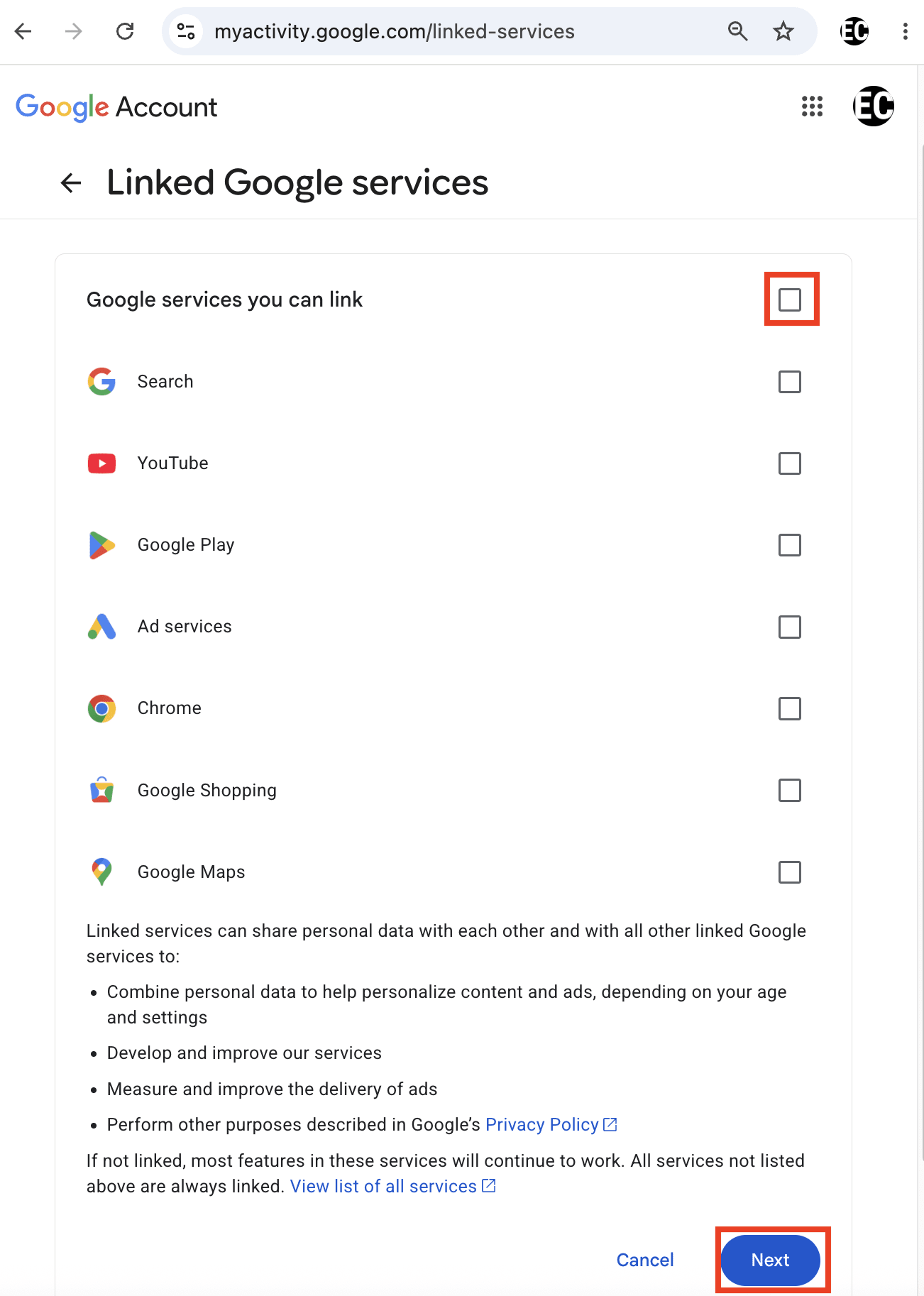
Note: Unlinking does not completely prevent Google from sharing data with these services. Some Google services can’t be unlinked under any circumstances and may continue sharing data with each other, such as Android Auto, Android TV, Chrome OS, Google Photos, Gemini Apps, and Waze.
Review third-party app connections
Over time, you likely granted various apps and sites access to parts of your Google Account through “Sign in with Google,” or by connecting things like a note-taking app to Google Drive, or a social network to your contacts. Each of these is a standing data-sharing relationship that keeps working until you revoke it, and most people never go back to check what’s still connected.
Once you delete a connection, that app or site loses access to whatever Google data it had, though it doesn’t retroactively delete data it may have already collected. This setting is concerned with outside developers and distinct from Linked Google Services covered above, which is about Google’s own products sharing data with each other.
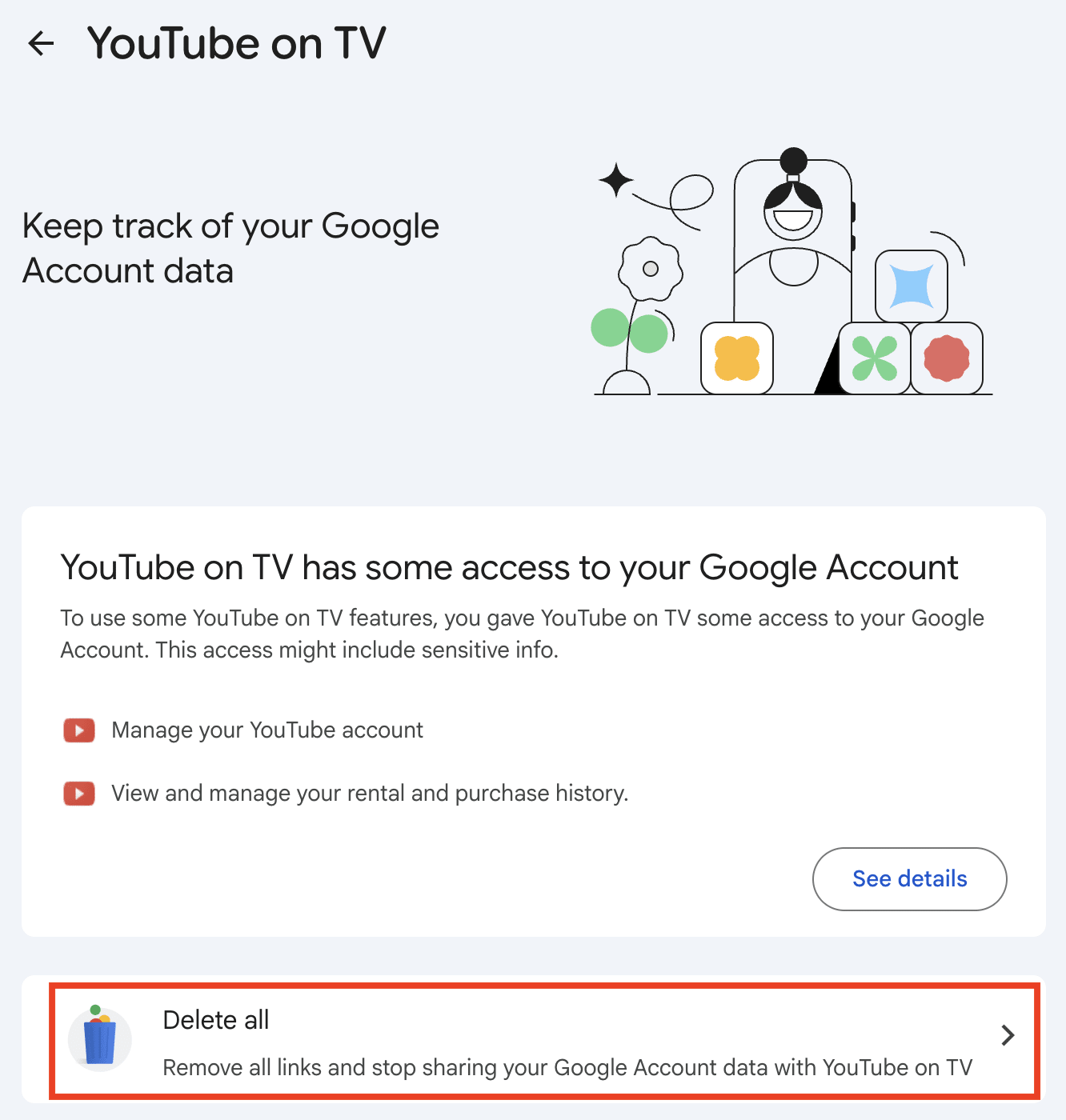
In your Google Account, go to Security & sign-in → See all linked apps, review the list, click on any app you no longer use or don’t recognize, and select Delete all.
(Optional) Remove personal info using Google’s “Results about you” tool
Google’s “Results about you” tool is designed to let you monitor and request removal of search results that expose your contact details or sensitive identifiers. Google expanded it in February 2026 to also cover government-issued IDs (driver’s license, passport, Social Security number), on top of the phone numbers, email addresses, home addresses, and non-consensual explicit images it already covered.
Your sensitive information will be removed from Google Search results, but it will remain on the sites that originally published it, so it can still be found if that site is accessed directly or if someone uses a different search engine like Bing. To get it removed at the source and subsequently all search engine results, contact the webmaster.
Note: This tool requires handing Google information you may not have given it before, like your home address, specifically so it can search for that information on your behalf. Google states that this data “isn’t shared or used to personalize your experience across other Google products,” and that it’s “used and stored to process your requests, improve the removal request process, and to allow you to view the status of your past removal requests over time.” If you don’t want Google to know more about you, feeding it more of your personal information may not be a good option.
Here’s how to use Google’s “Results about you” tool:
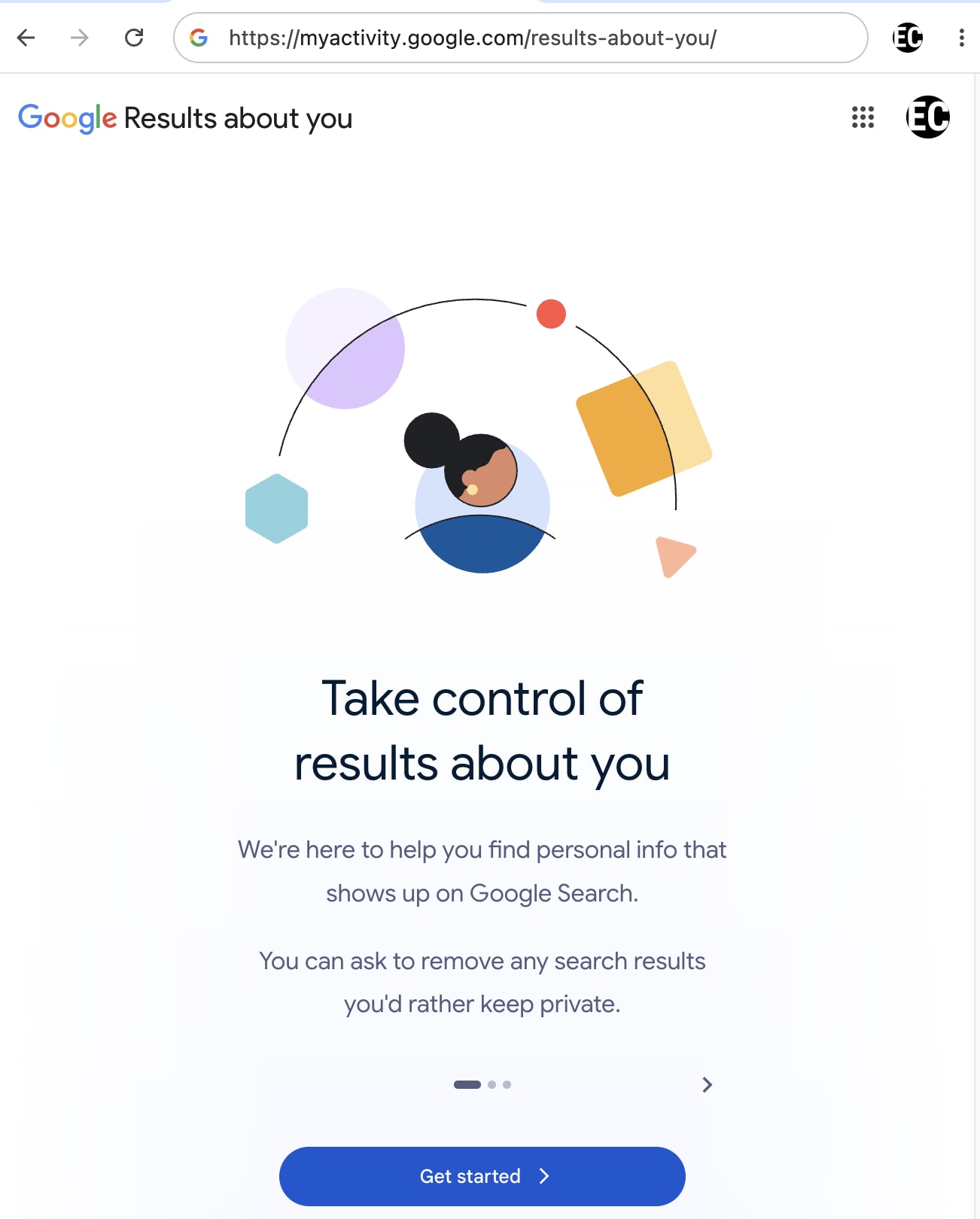
Go to myactivity.google.com/results-about-you, click Get started, and follow the prompts.
Android privacy settings
If you’re an Android user, the OS-level layer is where a meaningful share of Google’s data collection happens. Here’s how to lock down your Android settings:
Disable app permissions
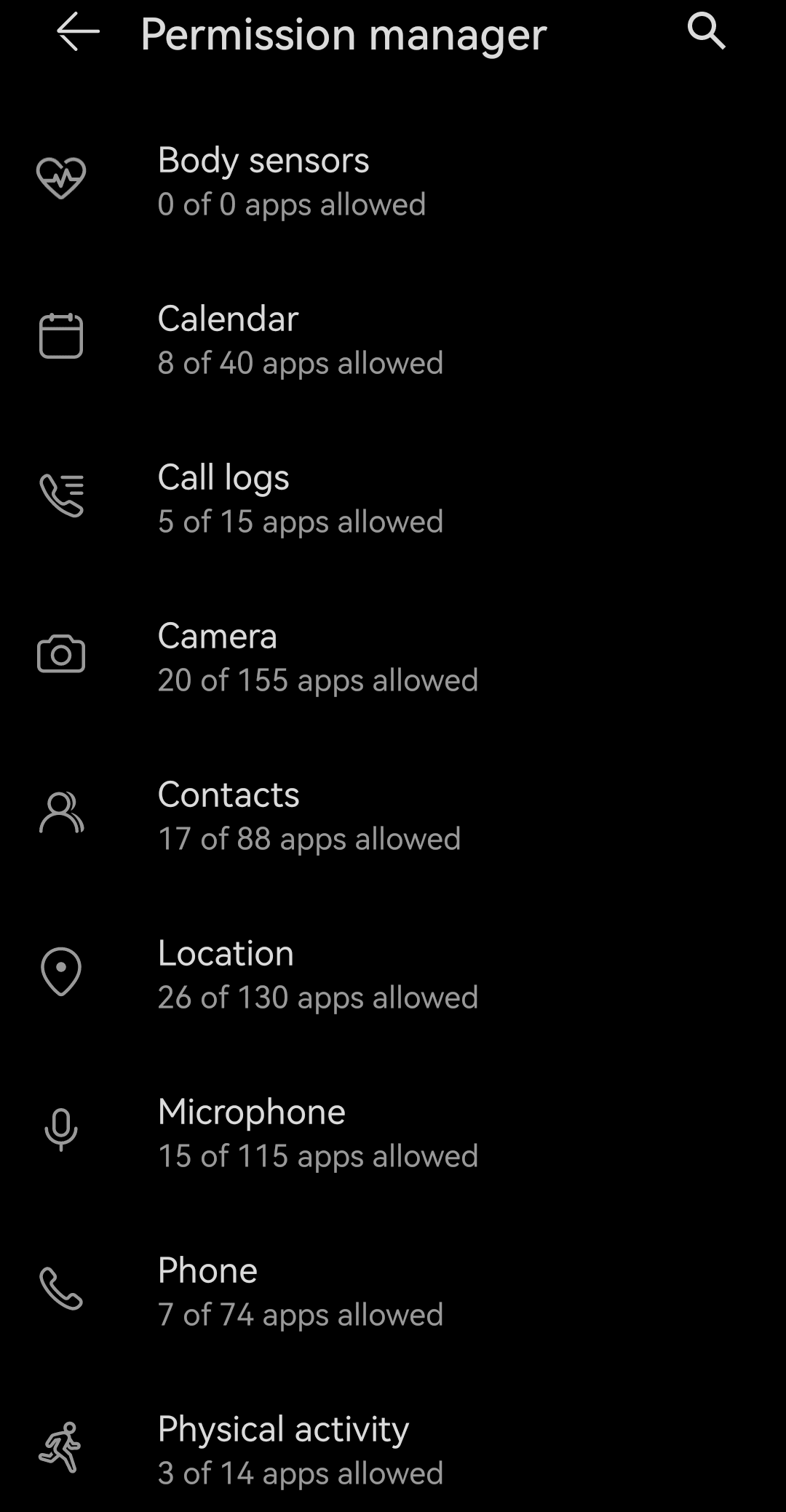
Go to Settings → Security & privacy (or Privacy) → Permission manager to view permissions by type (such as Location, Camera, and Microphone), rather than digging through each app individually.
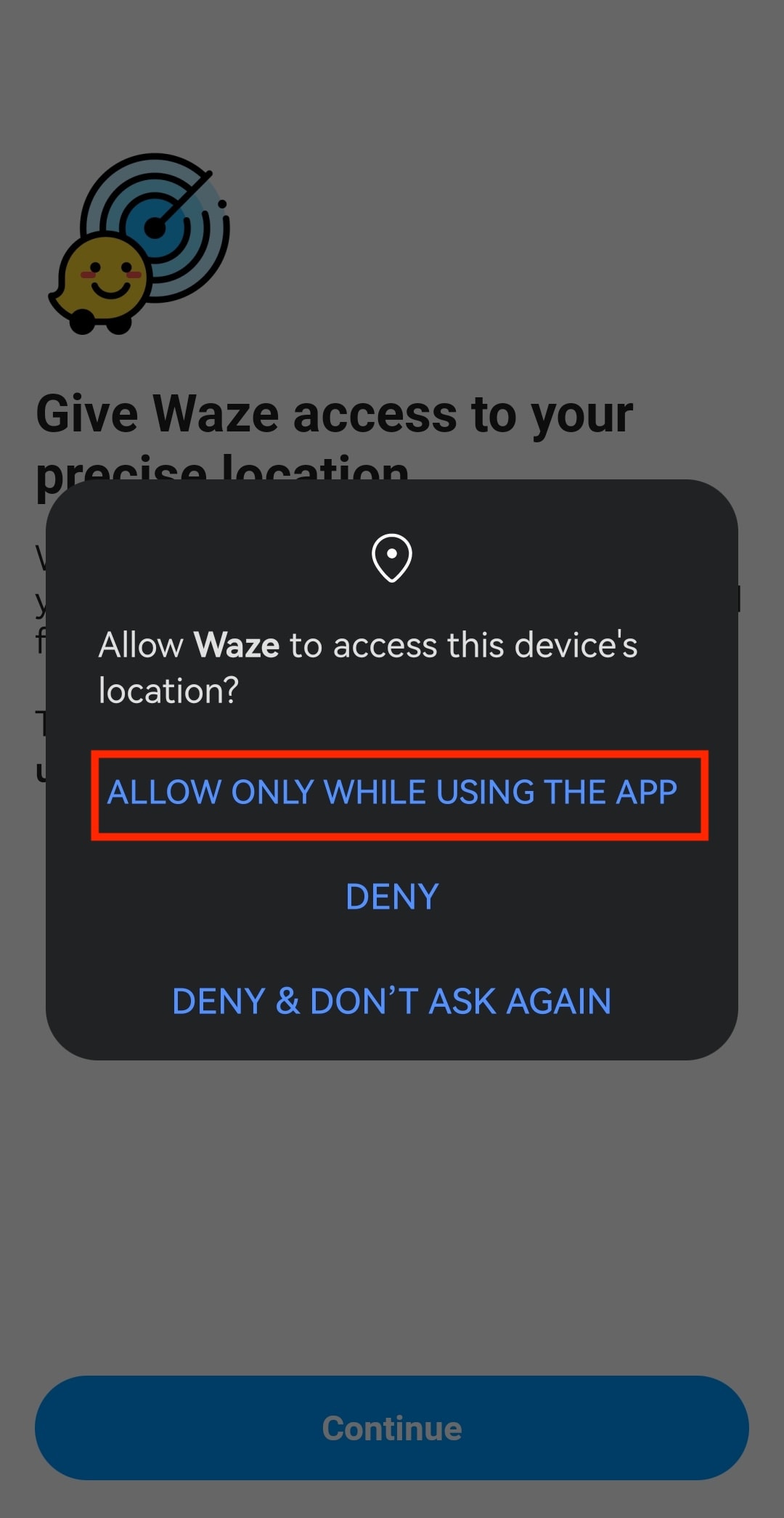
For location specifically, check which apps are set to “Allow all the time” and downgrade everything to “Allow only while using the app,” except the essential apps (such as navigation apps). Camera and microphone should generally be “Ask every time” or app-specific.
Use one-time permissions
When an app requests camera, microphone, or location access, Android’s permission dialog includes an “Only this time” or “Allow only while using the app” option; the access expires once you leave the app. For apps that don’t need ongoing access, choosing this by default is an easy way to avoid having to revoke permissions later.
Check app permissions in Privacy Dashboard
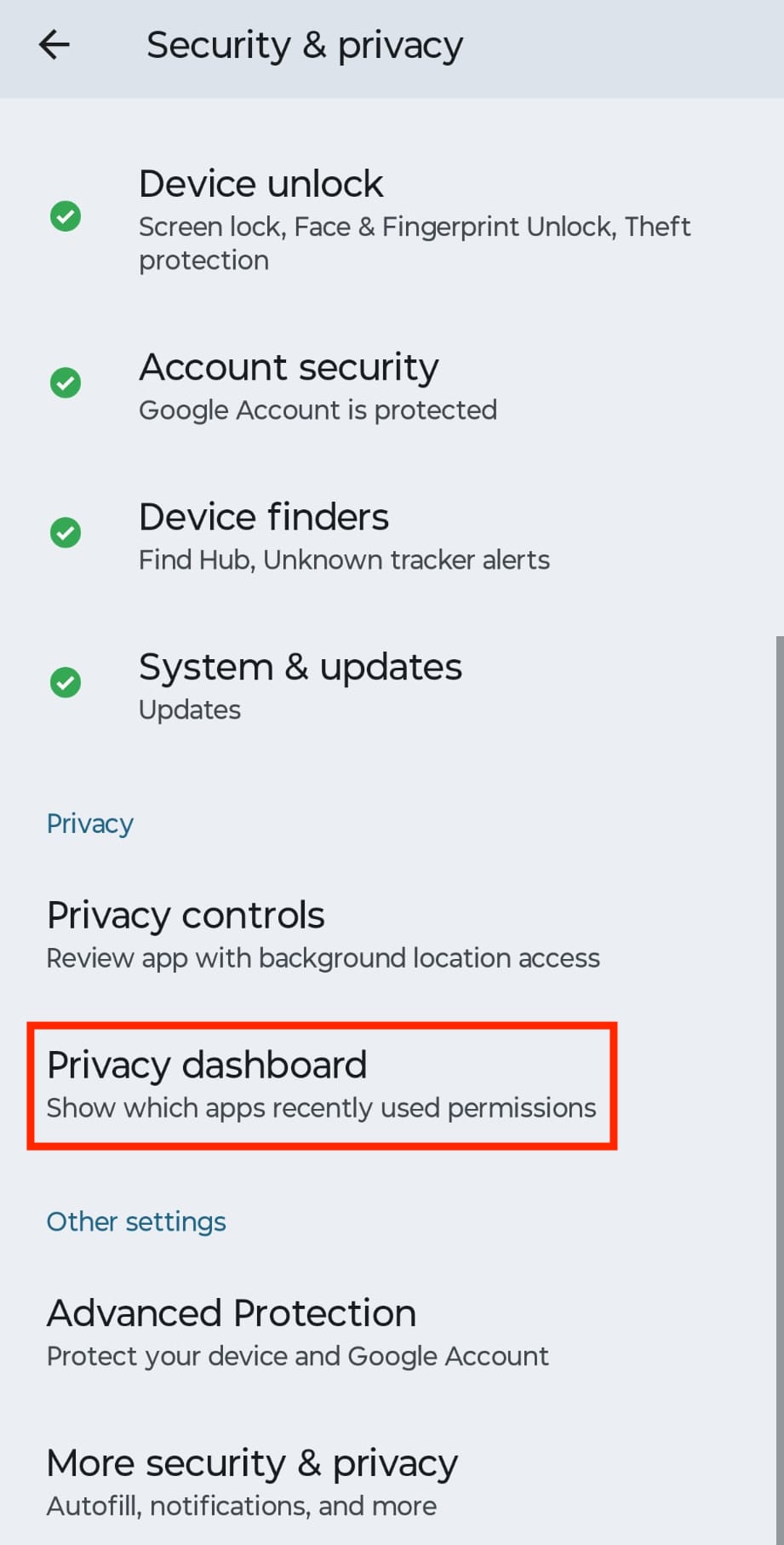
Go to Settings → Security & privacy (or Privacy) → Privacy dashboard to see a timeline of exactly when each app accessed camera, microphone, or location over the past 24 hours and 7 days. If an app is quietly using a permission far more often than its function suggests, revoke all its permissions or uninstall the app to be safe.
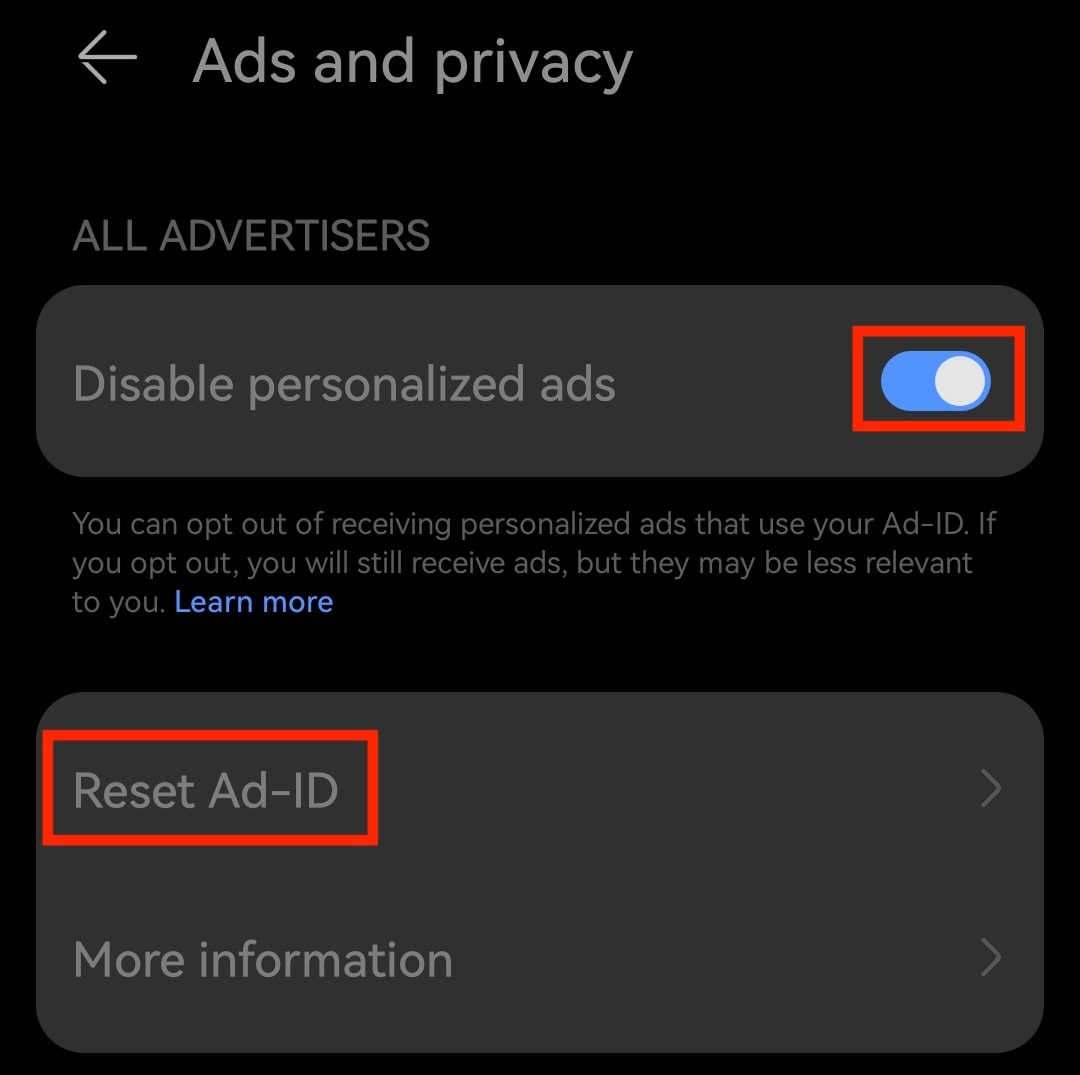
Disable personalized ads and reset your advertising ID
An advertising ID is a resettable identifier on your phone that apps and companies like Google can use to support advertising, such as measuring ad performance or building an advertising profile across apps. Your advertising ID can be linked to your device activity and, when combined with other information, may be used to identify or profile you.
To lock down your Google privacy settings, you can disable personalized ads and reset your advertising ID:
- Go to Settings → Security & privacy (or Privacy) → Permission manager → Ads and privacy.
- Turn on Disable personalized ads.
- Tap Reset Ad-ID and Reset again to confirm.
Turn off Gemini
Google is replacing Assistant with Gemini as Android’s default AI assistant, in many cases without an explicit opt-in. Gemini can access Gmail, Google Calendar, Google Drive, Google Maps, and messaging apps to complete tasks on your behalf, and by default your conversations may be reviewed by human reviewers and stored for up to three years to help train Google’s AI models.
To turn off Gemini on Android and limit what it can see:
- Open the Gemini app, tap your profile icon, and select Gemini Apps Activity.
- Tap Turn off → Turn off and delete activity, and follow the prompts.
- Go back to your profile icon → Apps, and toggle off all apps.
- If you’ve used Gemini Deep Research, open Sources and clear Gmail, Drive, and Chat — Deep Research can otherwise read and cross-reference their content.

Turning off Gemini Apps Activity reduces your data retention window from up to three years down to 72 hours, but doesn’t fully stop collection: Google says it may still process your chats to “create anonymized data to improve Google services.” Gemini also can’t be uninstalled on most devices, since Google is making it the default system assistant on Android.
If you’re looking for more privacy without giving up the convenience of an AI assistant, try Lumo. You should also check out these private European phones that run without Android or use deGoogled versions of Android.
Google Chrome privacy settings
Chrome is one of the biggest channels through which Google collects data, largely because it’s designed to sign you in automatically and sync your activity the moment you log into any Google service. The best way to limit this is to stop using Chrome. Alternatively, here’s how to limit what it sends back without switching browsers:
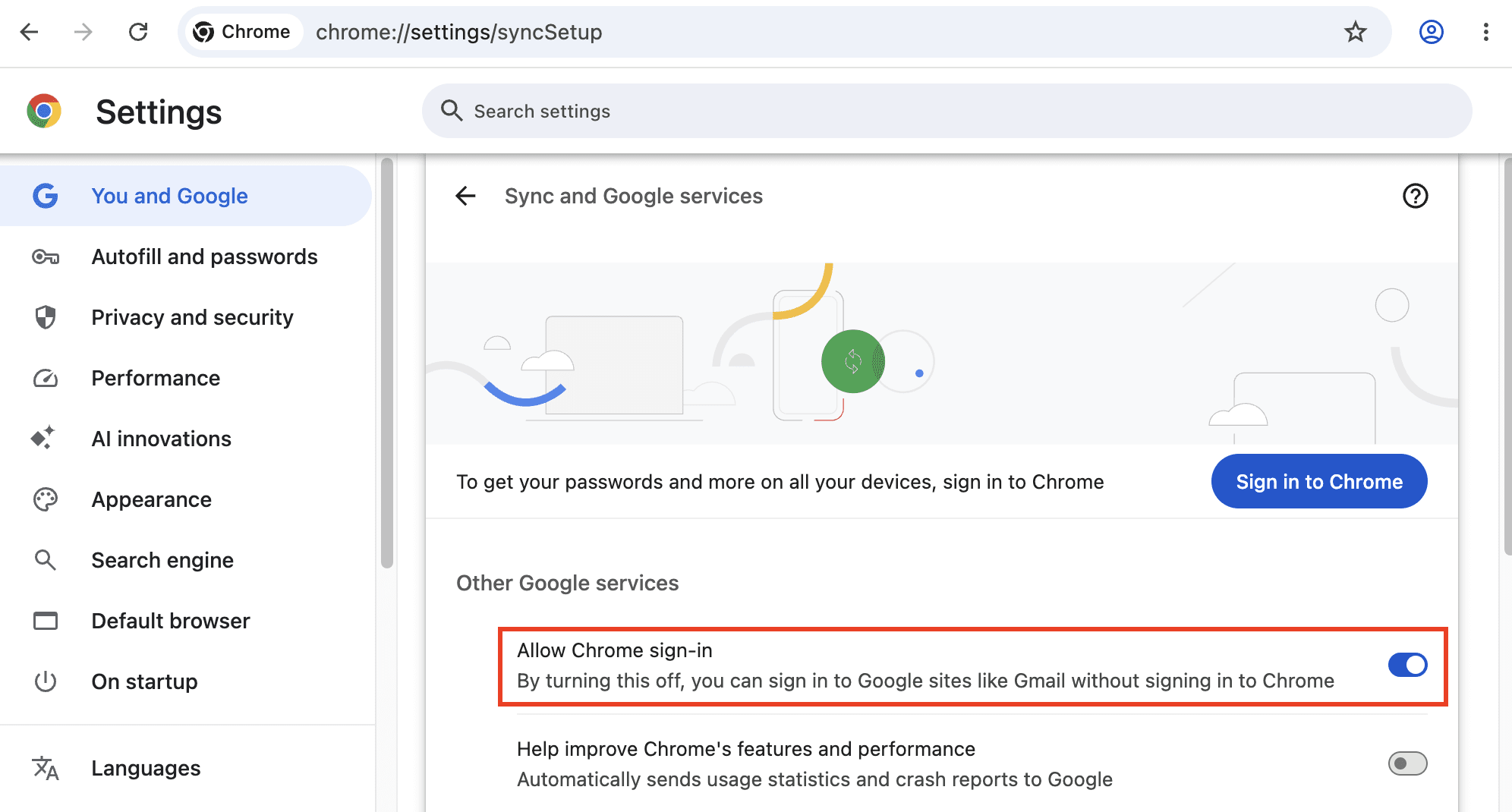
Turn off automatic Chrome sign-in
By default, signing into Gmail or any other Google service also signs you into Chrome itself, and starts sending your browsing activity to your Google Account — a step most people never explicitly agreed to.
- Go to Settings → You and Google → Sync and Google services (chrome://settings/syncSetup).
- Switch off Allow Chrome sign-in.
- If you’re already signed in, click your profile icon in the top right and select Sign out.
Stay signed in but limit syncing
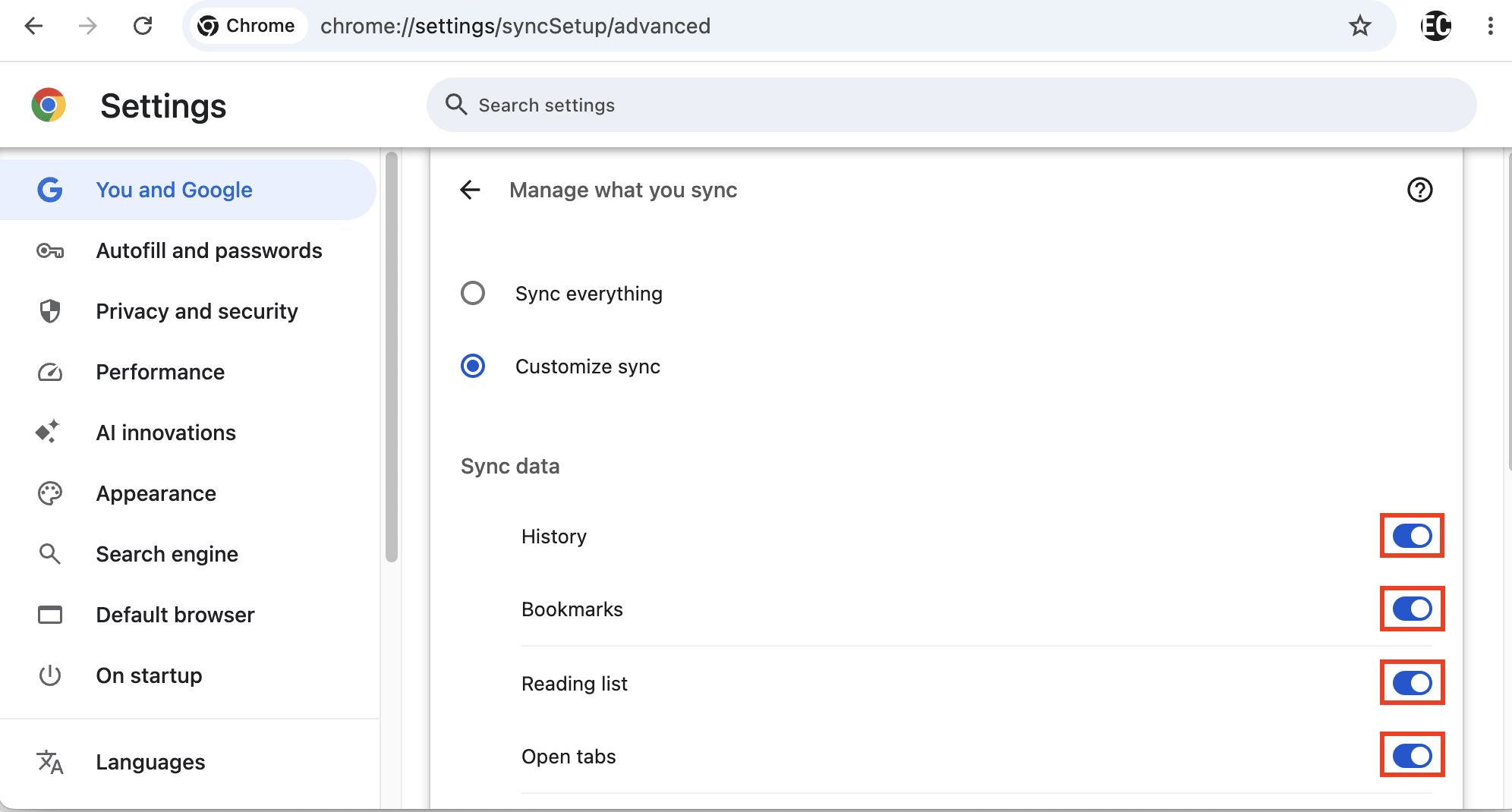
If you do want to stay signed in for convenience, you can restrict which categories of data Chrome sends to Google.
Go to Settings → You and Google → Sync and Google services (chrome://settings/syncSetup). You have two options:
- Click Turn off next to your Gmail address to disable sync for all types of data
- Or, go to Manage what you sync, select Customize sync, and toggle off individual types of data you want to exclude from sync, such as History, Bookmarks, and Settings.
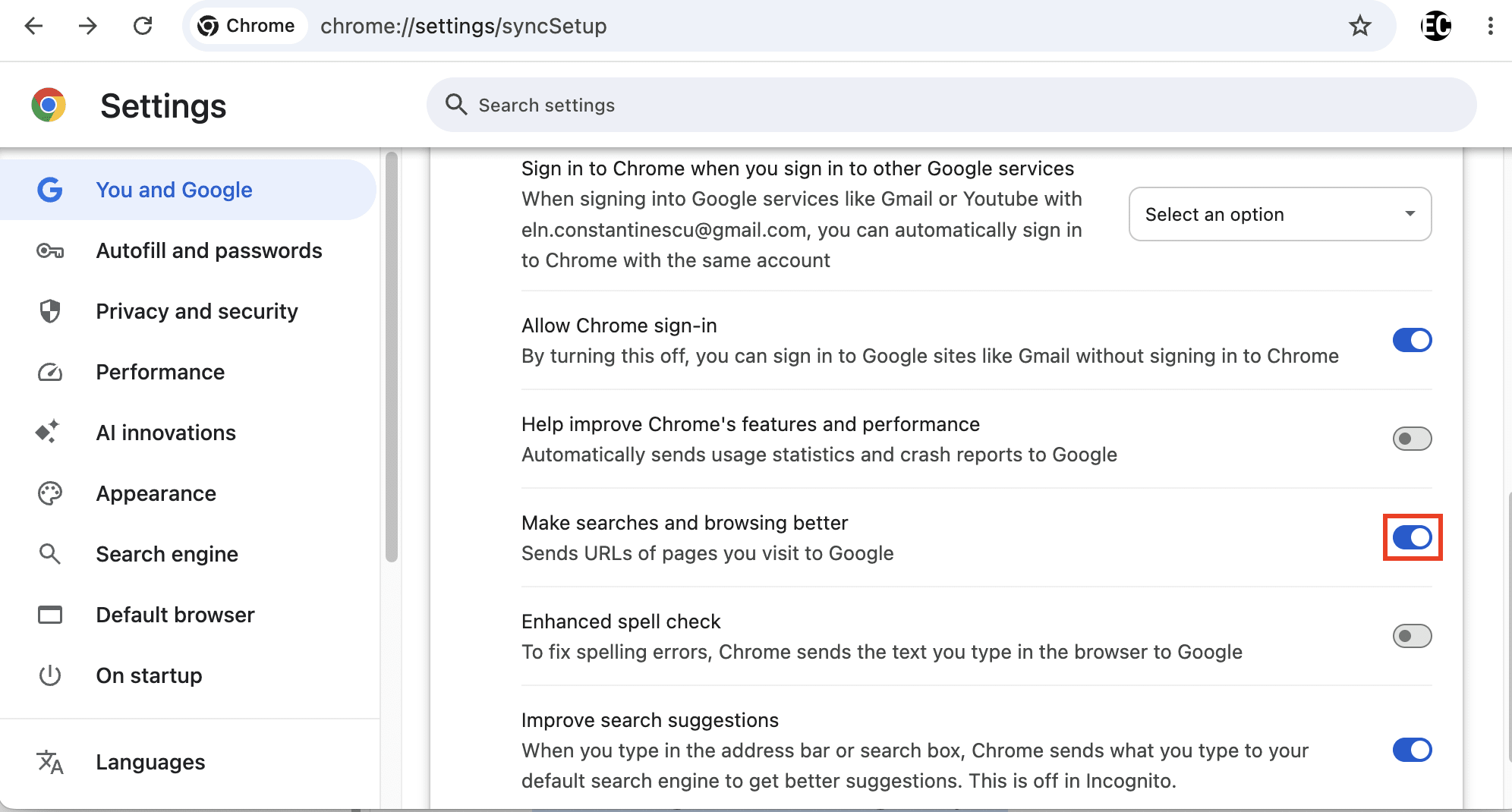
Turn off “Make searches and browsing better”
This setting sends your browsing activity to Google beyond what’s needed to actually load a page, to improve Google’s own products.
Go to Settings → You and Google and switch off Make searches and browsing better.
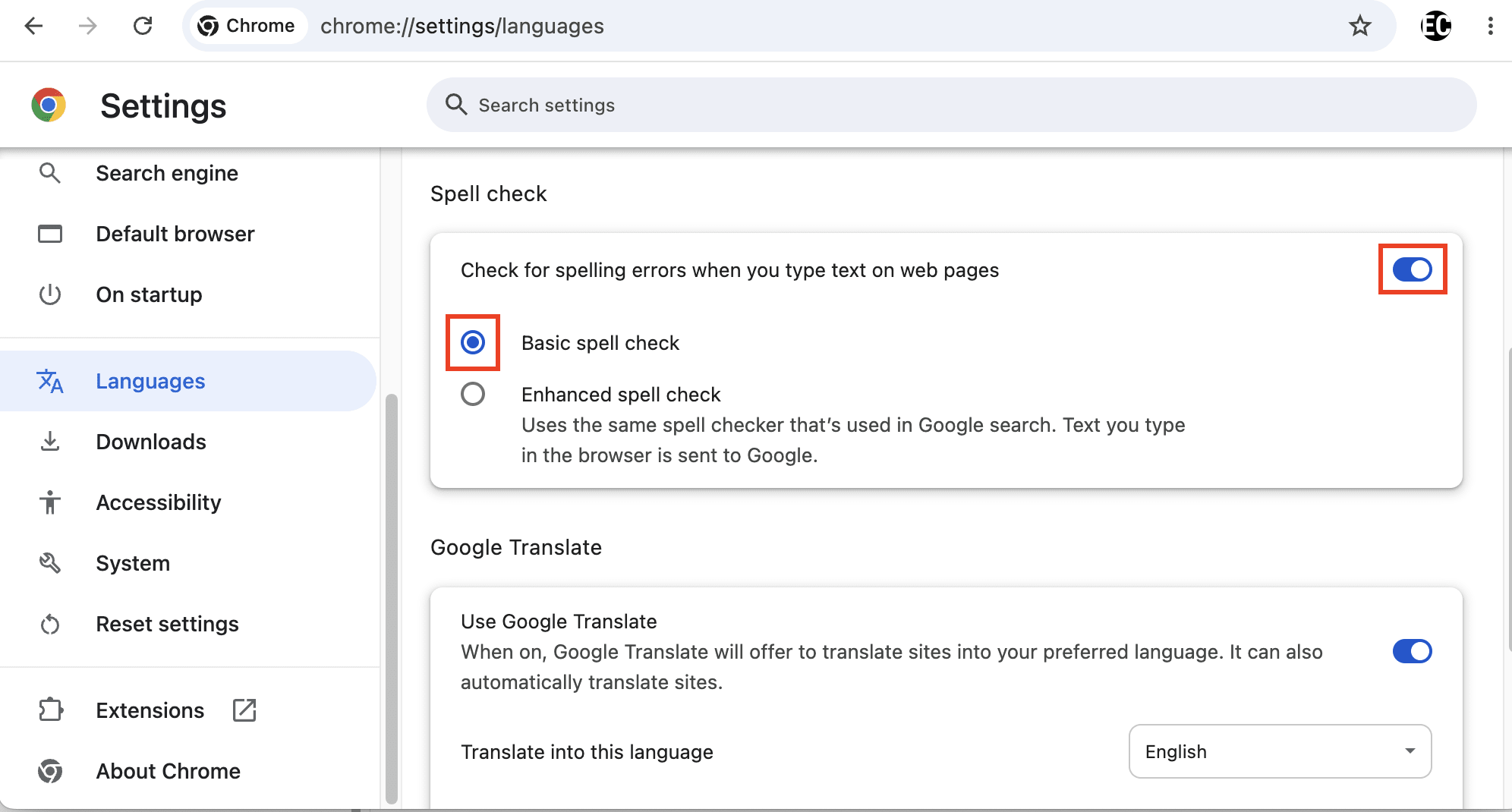
Turn off enhanced spell check
Enhanced spell check sends text to Google’s servers as you type it, including anything you type, change your mind about, and then delete before pressing Enter. This means that you may inadvertently share sensitive data with Google, including usernames, email addresses, and passwords. Security researchers have shown how the enhanced spellcheck features of Google Chrome and Microsoft Edge exposed passwords even when clicking “Show password”(new window) to reveal masked text.
Chrome’s built-in spellchecker can’t be disabled, but you can switch to Basic spell check, which uses a local dictionary and doesn’t send anything to Google:
Go to Settings → Languages (chrome://settings/languages). You can:
- Select Basic spell check, which uses a local dictionary provided by Chrome or your operating system, and doesn’t send anything to Google
- Or, toggle off Check for spelling errors when you type text on web pages, which disables the spellchecker
What lawsuits reveal about Google privacy settings
Google’s public privacy messaging has repeatedly been found by regulators, juries, or Google’s own staff to overstate the actual protection its settings provided. Disputes involving Google never end with a jury verdict, as the company has repeatedly settled privacy cases while denying wrongdoing or liability. In 2025 alone, Google was hit with roughly $4.24 billion in fines, which it could pay off with about three weeks of its free cash flow.
The worst part is that you don’t necessarily have to seek out Google products for your privacy to be compromised. Google’s advertising, analytics, and other tools are embedded across a huge part of the web, so visiting an ordinary website or using a third-party app can still put your activity through Google-linked infrastructure.
Here are a few examples of where Google’s privacy practices have contradicted its public messaging, though this is not an exhaustive list:
Location tracking continued after opt-out
A 2018 Associated Press investigation(new window) found that turning off Location History didn’t stop Google from storing timestamped location data. Maps, weather checks, and unrelated searches still recorded it, despite Google’s help page stating “the places you go are no longer stored.”
Litigation that followed surfaced internal Google communications describing the settings interface as designed to be “possible, yet difficult enough that people won’t figure it out.” It also found that Google repeatedly nudged users to re-enable location even when apps didn’t need it, and flagged the off/paused wording itself as misleading.
The core finding that Google collected location data from roughly 247 million Android users in the US after they had disabled Location History became the central claim across every settlement in following lawsuits.
Browsing data collected in incognito/private browsing mode
When using Chrome in incognito mode (or any other browser in private browsing mode), Google still collects your browsing data through tools like Analytics and Ad Manager. This has led to a class action lawsuit that Google settled in 2024(new window), agreeing to delete billions of browsing records, make its privacy disclosures clearer, and block third-party cookies in Chrome’s Incognito mode by default for five years. It never stopped server-side collection by Google or by any website you visit that runs Analytics, Ads, or similar embedded services.
Instead of using Google Chrome, consider these European web browsers with better privacy features.
Personal data collected with Web & App Activity switched off
A lawsuit alleged that Google kept receiving activity data from apps like Uber, Venmo, TikTok(new window), Instagram, and WhatsApp, even with the Web & App Activity setting turned off. Google argued the data was anonymized and used only in aggregate, but a federal jury disagreed. It found Google liable for invasion of privacy in September 2025 and ordered it to pay $425.7 million(new window) to a class of roughly 98 million users. Google has asked the court to vacate the verdict and may appeal.
Right-to-be-forgotten requests leaked via a public database
In May 2022, Spain’s data protection authority fined Google €10 million(new window) over how it handled the GDPR’s “right to be forgotten” — the right, in certain circumstances, to have personal data erased or removed from search results. Google was sending copies of removal requests to the public Lumen database, where the information could be published and found again, effectively defeating the purpose of having it removed in the first place. It also designed its removal forms in a way that made it hard for people to tell whether their GDPR rights applied.
Google Assistant recordings reviewed by people and used commercially
Google Assistant sometimes recorded private conversations even when users hadn’t activated it, after background sounds were mistaken for the wake word. In 2019, a contractor leaked more than 1,000 recordings(new window) to Belgian broadcaster VRT, including bedroom conversations, medical information, and apparent domestic-violence situations; 153 were confirmed accidental activations.
Plaintiffs in a separate case allege Google had been collecting such recordings since 2016, sharing some with contractors and using the data commercially without adequate consent. Google denies the allegations but has agreed to a $68 million settlement(new window), which is still awaiting final court approval.
DeGoogle your life, starting with email
Changing these Google privacy settings can cut down how much of your searches, location, app activity, advertising data, and other personal information Google can use. But it won’t stop Google tracking altogether. Some data collection happens outside the settings on your account or phone, including through Google tools built into third-party websites and apps.
If you want to go further, the biggest step is to start deGoogling, and that begins with your Google Account. A lot of what Google knows about you gets tied together because you’re signed in, so deleting your Google Account breaks one of the main links connecting your activity across Search, YouTube, Maps, Android, Gmail, and other services.
From there, start replacing the Google services you rely on most, especially email. Your inbox is the hub of your digital life, holding private conversations, receipts, travel plans, account alerts, contacts, and password-reset links.
Proton Mail takes a privacy-first approach: no ads, no tracking, no AI training, no profiling you or sharing your data with anyone. If you’re seeking a private Gmail alternative, we’re exclusively supported by our community of paying subscribers and fully transparent. Our apps are independently audited and open-source, so anyone can check our claims.