
Invalid password error while setting up email client
- Reading
- 1 min
- Category
- Common issues and questions
If your email client asks you to enter your password, reports that your password is incorrect, or fails to authenticate when using Proton Mail Bridge, you’re most likely using the wrong password.
When you use Proton Mail Bridge, your email client must use the password generated by Bridge, not your Proton Account password.
Before you begin
Before troubleshooting your email client, verify the following:
- Proton Mail Bridge is running, and you’re signed in.
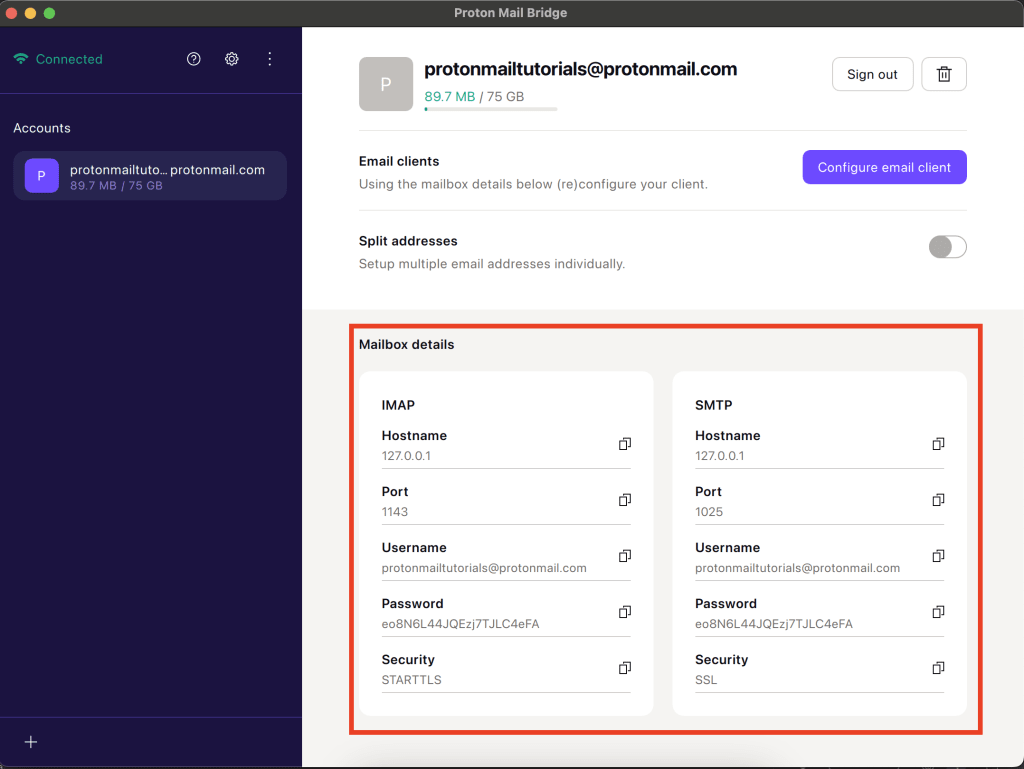
- You’re using the password shown in Mailbox details, not your Proton Account password.
- If you have multiple Proton Accounts configured in Bridge, use the password for the correct mailbox.
- If your email client stores separate passwords for the incoming (IMAP) and outgoing (SMTP) servers, make sure to update both.
- If you recently removed and re-added your mailbox in Bridge, make sure you’re using the latest password from Mailbox details.
If you’re setting up your account in an email client
If you’re adding your Proton Mail account to an email client for the first time, setup may fail if the wrong password is entered.
Depending on your email client, you may see messages such as:
- Invalid password
- Authentication failed
- Login failed
- Username or password is incorrect
- Unable to connect to the server
To complete the setup:
- Open Proton Mail Bridge.
- Select your mailbox.
- Open Mailbox details.
- Copy the password shown under Password.
- You can use the papers icon next to the password to copy it
- Paste it into your email client’s password field.
- If prompted separately for IMAP and SMTP passwords, use the same Bridge password for both.
If your email client asks for your password again
Your email client may ask you to enter your password even if your account was previously working.
This can happen if:
- You signed out of Proton Mail Bridge and signed in again.
- You removed and re-added your mailbox in Bridge.
- Your email client lost its saved credentials.
- The email client tried to connect before Bridge was running and connected
If this happens, copy the current password from Mailbox details and replace the saved password in your email client.
Troubleshooting by email client
Thunderbird
Thunderbird may display messages such as:
- Login to server failed
- Authentication failed
It may also repeatedly ask you to enter your password.
To resolve this, when asked to enter the password again:
- Open Proton Mail Bridge and copy the password from Mailbox details
- You can use the papers icon next to the password to copy it
- Paste it in the password field within Thunderbird
Classic Outlook (Windows)
Classic Outlook will typically display a prompt to enter your password without any error shown.
To resolve this, when asked to enter the password again:
- Open Proton Mail Bridge and copy the password from Mailbox details
- You can use the papers icon next to the password to copy it
- Paste it in the password field within Outlook and make sure the email address is correct as well
Outlook for macOS
Outlook for macOS may:
- Prompt you to enter your password each time it starts.
- Report an authentication error.
- Be unable to connect to your mailbox.
To resolve this:
- When asked to enter a new password, use the current password from Mailbox details.
- You can also manually set the new password from Outlook → Outlook (top-left) → Accounts → Select your Proton Mail account here and update the passwords.
- Restart Outlook.
Apple Mail
Apple Mail may display messages such as:
- Unable to verify account name or password
- Authentication failed
- Cannot connect to account
It may also repeatedly ask you to enter your password.
To resolve this:
- Replace the saved password with the current password from Mailbox details.
- Restart Apple Mail.
- If Apple Mail continues to reject your password, remove your account from Apple Mail and configure it again.
- Delete your old profile in your Mac settings (from Settings → General → Device Management → Profiles, on macOS older than 15, it should be in System Settings → Privacy & Security → Profiles)
- Open Proton Mail Bridge again and click Configure email client → Apple Mail, then follow the prompts.
Frequently asked questions
Why doesn’t my Proton Account password work?
Your Proton Account password is only used to sign in to your Proton Account. Email clients that connect through Proton Mail Bridge must use the password generated by Bridge.
Why am I being asked to enter my password again?
Your email client may ask for your password again if it no longer has the correct mailbox credentials or if it tried to authenticate before Bridge was connected.
Do I need to update both the IMAP and SMTP passwords?
Yes. If your email client stores separate passwords for the incoming (IMAP) and outgoing (SMTP) servers, update both using the password shown in Mailbox details.