
Using categories in Proton Mail
- Reading
- 4 mins
- Category
- Search and organize emails
Note: We’re rolling out Categories gradually, so if you don’t see it in your inbox yet, you will soon — by end of September.
Categories automatically sort incoming messages in your Proton Mail inbox, making it easier to find important emails and reduce clutter. This feature is available to all Proton Mail users on web and mobile apps.
- What are categories?
- Turn categories on or off
- Show or hide categories
- Enable or disable notifications for categories
- Move an email to a different category
- Frequently asked questions
What are categories?

When a new email arrives, Proton Mail automatically places it into one of the following categories:
| Category | What it’s for | Default status |
|---|---|---|
| Primary | Personal and, work emails, important updates, notifications | Always on |
| Social | Social media updates and activity notifications | On |
| Promotions | Deals, offers, discounts, and sales | On |
| Newsletters | Non-promotional content and news | On |
| Transactions | Bookings, billings, and orders | Off |
| Updates | Automated confirmations and alerts | Off |
The Primary category cannot be hidden or disabled. You can show or hide the other categories from your settings.
Categories show a blue dot to indicate new emails have arrived in a category since your last visit.

On web, if you prefer to see the number of unread messages in each category instead of a blue dot, you can enable this setting:
- Open Proton Mail settings.
- Go to Messages and composing.
- Under Email categories, toggle on Show unread count.

On mobile, you can tap an Unread counter button at the bottom to view only unread emails in the current category.

Turn categories on or off
If you don’t want to use categories, you can turn them off and return to the old Proton Mail inbox view.
On web
- Open Proton Mail settings.
- Go to Messages and composing.
- Under Email categories, turn Use email categories on or off.

On mobile
Go to Settings → Mailbox preferences and toggle off Enable categories.
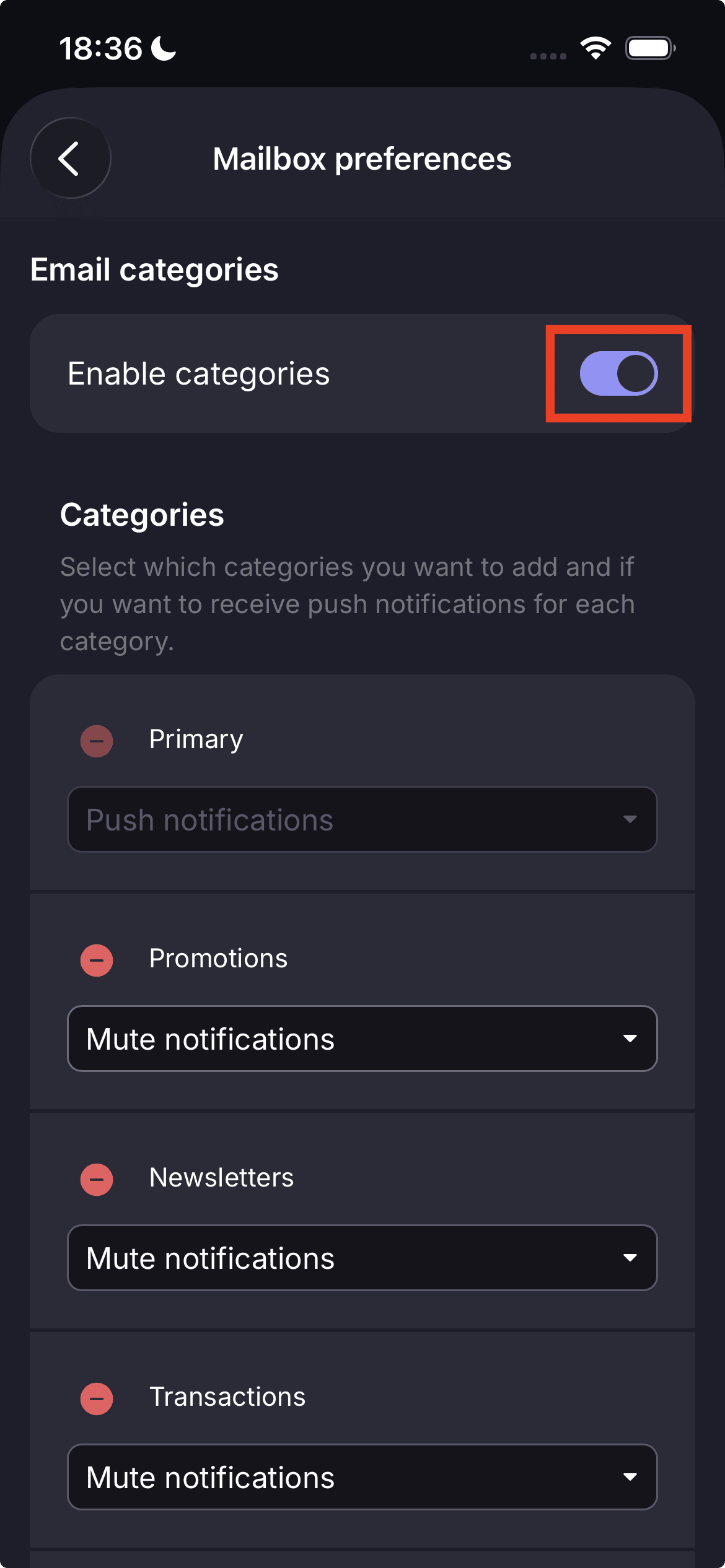
When categories are turned off, your inbox will no longer be separated into category tabs.
Note: To view all your emails in one uncategorized list while keeping categories enabled, go to All mail.

Show or hide categories
You can choose which category tabs appear in your inbox.
On web
- Open Proton Mail settings.
- Go to Messages and composing.
- Under Email categories, use the on/off toggles to choose which categories appear in your inbox.

On mobile
- Go to Settings → Mailbox preferences.
- Tap the red button 🔴 next to a category you want to remove. The category will be moved to an Add categories list below.
- If you change your mind, go to Add categories and tap the green button 🟢 next to the category you want to add back to your view.

Primary is always shown and cannot be disabled. Transactions and Updates are hidden by default, but you can enable them from settings.
Enable or disable notifications for categories
You can choose which categories send system or push notifications.
On web
- Open Proton Mail settings.
- Go to Messages and composing.
- Under Email categories, check the boxes for the categories you want to receive system notifications for, or uncheck them to turn notifications off.

On mobile
- Go to Settings → Mailbox preferences.
- Open the menu for the category you want to update.
- Select Push notifications to enable, or None to disable push notifications.

System and push notifications for Primary are enabled automatically and can’t be disabled.
Move an email to a different category
If an email is placed in the wrong category, you can move it.
On web
- Drag and drop the email into the correct category, or
- Right-click the email, select Move to category, then choose the category you want.

On mobile
- Long press an email to select it. You can select one or more emails.
- Tap the Move to folder icon at the bottom of the screen.

- Select the preferred category.

After you move an email to a different category, similar emails will be sorted into that category over time. Proton Mail learns from your preferences, so categorization should become more accurate the more you use it.
Frequently asked questions
Proton Mail categorizes emails without reading the content of your messages. We use metadata to categorize your emails, and we never read your email content. Proton Mail’s encryption model remains unchanged, so we don’t have the technical ability to scan your email content for things like ads, AI training, or sharing with third parties.
Yes. If you use Gmail inside Proton Mail, Gmail messages follow the same category logic as other incoming emails. However, Proton Mail does not have a Forms category. Emails that would be placed into a Forms category in another email service will be sorted into another Proton Mail category. Existing older emails are not migrated into categories but assigned to Primary.
Categories are designed to work for most emails, but your preferences may be different. For example, you might want a particular newsletter to appear in Primary. Move the email to your preferred category by dragging and dropping it or right-clicking it and selecting Move to category. Proton Mail will learn from your choice and sort similar emails into that category in the future.