
Why does my Mac ask for my password after updating Proton Mail?
- Reading
- 4 mins
- Category
- Using Proton Mail
After you update the Proton Mail desktop app on your Mac to version 1.15.1 or later, a window may pop up asking for your password. This is normal and safe, and you only need to do this once. Here’s what to do.
What you’ll see
The first time you open Proton Mail after updating, your Mac shows a window that says:

This window comes from your Mac. It asks whether Proton Mail can use the sign-in details it saved earlier, so that you stay signed in.
What to do
- In the Password box, type the password you use to unlock your Mac. It’s the same password you type when you turn on your Mac or log in to it.
- Click Always Allow.
That’s it. Proton Mail opens as usual and you stay signed in.
Important: Type your Mac password, not your Proton password. This window comes from your Mac, so it needs your Mac password.
Also, make sure to click Always Allow, not Allow or Deny:
- Allow works only once. Your Mac will ask again every time you open Proton Mail.
- Deny signs you out of Proton Mail, and the window will keep coming back.
Why is this happening?
Every app on your Mac carries a digital signature that proves who made it, a bit like a seal on an envelope. This update gives Proton Mail a new signature. Your Mac notices the change and, to protect you, asks your permission before letting the updated app use the sign-in details the old version saved. This is a normal Mac safety check, and it happens with any app whose signature changes.
Is this safe?
Yes. This window comes from macOS itself, not from Proton or a website. Proton never sees your Mac password. It goes straight to your Mac.
You can tell the window is genuine because:
- It appears right after you open Proton Mail.
- It shows the Proton Mail icon and mentions Proton Mail Safe Storage.
If you ever see a request for your Mac password inside an email or on a website, don’t enter it.
Frequently asked questions
I clicked Allow and another window appeared. What should I do?
After you click Allow, your Mac shows a second, similar window:
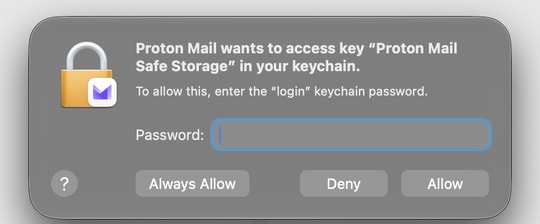
Type your Mac password again and click Always Allow. If you click Allow again, it works for now, but your Mac will ask again the next time you open Proton Mail.
I clicked Deny. What now?
Nothing is broken. Close Proton Mail and open it again. The window will appear again. This time, type your Mac password and click Always Allow, then sign back in if Proton Mail asks you to.
The window keeps coming back, or Proton Mail freezes after I click Always Allow. What should I do?
Your Mac’s saved Proton Mail sign-in details may be stuck. You can safely delete them so Proton Mail can save fresh ones. Your emails are not affected.
- Quit Proton Mail completely. In the menu bar at the top of your screen, click Proton Mail → Quit Proton Mail.
- Open the Keychain Access app. Press Command (⌘) + Space, type Keychain Access, and press Return.
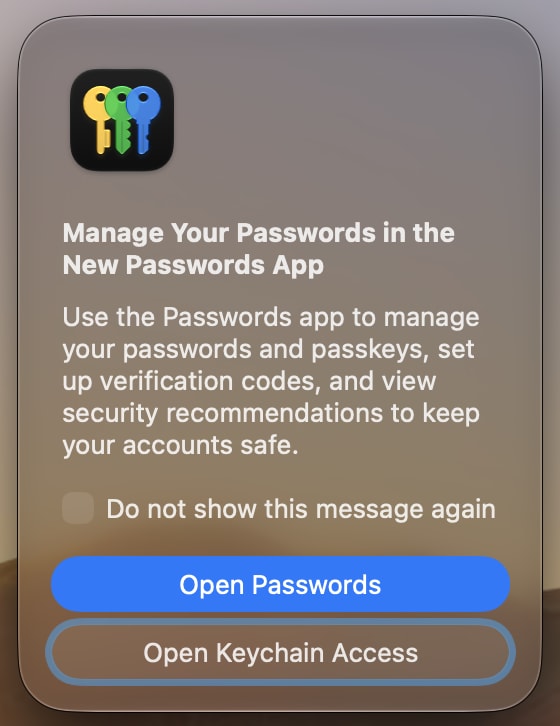
- If a window titled Manage Your Passwords in the New Passwords App appears, click Open Keychain Access. Don’t choose Open Passwords. The Passwords app doesn’t show the item you need to delete.
- In the list on the left, click login.
- In the search box at the top right, type Proton Mail Safe Storage.
- Control-click (or right-click) Proton Mail Safe Storage and choose Delete “Proton Mail Safe Storage”. Click Delete to confirm.

- Close Keychain Access and open Proton Mail again.
- Sign in with your Proton account. If your Mac asks for a password, type the password you use to unlock your Mac and click Always Allow.
Tip: If you can’t delete it, check that login is selected in the list on the left. It doesn’t work if iCloud or another item is selected.
My Mac password isn’t accepted. What should I do?
If your Mac password was changed or reset at some point, your Mac may still expect your old password here. Try the password you used before. If that doesn’t work either, see Apple’s guide to fixing your keychain password(new window).
Will I have to do this again?
No. Once you click Always Allow, your Mac remembers your choice.
Can I use Touch ID instead?
No. This window only accepts your Mac password.