
How to restore organization administrator privileges
- Reading
- 5 mins
- Category
- Manage users
If you have a Proton for Business or Proton Visionary plan and you’re an administrator, some of your administrator privileges can be restricted in certain situations. This article explains why that happens and how to restore full privileges.
Check how your organization key is managed
Most organizations, including all newly created ones, use passwordless organization key management. Your organization key is secured with each administrator’s own account keys, so there’s no separate organization password to remember or share.
A small number of older organizations still use an organization password.
To check which one you have, go to Settings → All settings → Organization → Multi-user support. If you see a Change organization key button, your organization is passwordless.
Restore administrator privileges in a passwordless organization
Why your privileges were restricted
In a passwordless organization, you lose access to the organization key when you reset your Proton password. A reset only happens when you forget your password. There’s no impact if you simply change your password.
This happens because your access to the organization key is protected by your account keys. When you reset your password, your old account keys become inactive, so the organization key can no longer be unlocked on your account.
What you need to do
If you reset your Proton password, you’ll need to reset the organization key to restore your administrator privileges. Before the organization key can be reset, all non-private users in your organization must be set as private.
The reset flow does both steps for you automatically:
- All non-private users are converted to private users.
- The organization key is reset.
- Each converted user receives an email asking them to enable administrator access again.
Resetting the organization key generates a new encryption key for your organization. No data is lost or destroyed, however, your organization’s user groups will need to be deleted manually.
Converted users stay private until they accept the request from their account settings. While a user is private, you can’t access their account. You don’t need to wait for them to accept before you continue managing your organization.
Before you start
- Tell your non-private users they’ll receive an email asking them to enable administrator access. That way the request doesn’t surprise them. Also, make sure that all users know their password.
- Allow time for the reset. Keep the browser tab open and your device active until the reset is complete.
How to reset the organization key
Before proceeding to reset the Organization key, you will need to delete all groups that you have created for your Organization. Next, you will need to take the following steps:
1. Sign in at account.proton.me and go to Settings → All settings → Organization → Multi-user support.
2. The Restore administrator privileges window usually opens automatically. If it doesn’t, click Restore administrator privileges in the banner.
3. You will be presented with two options to restore your administrator privileges, the previous password used before the password reset and the recovery file.
4. If the window shows other options first, click Try another way until you reach Reset organization key?
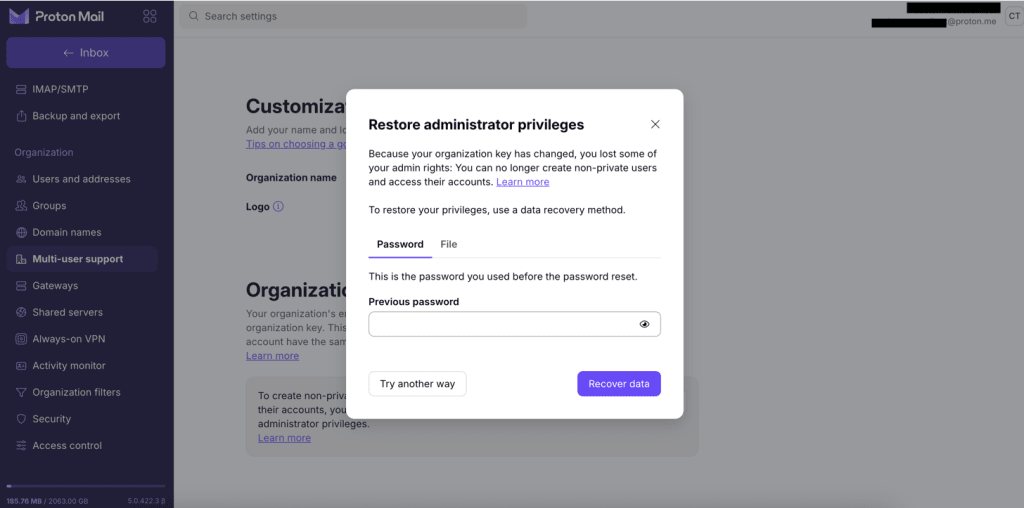
You’ll see how many non-private users will be converted to private:

- Click See users to view the list. You can click Copy email list to copy their addresses.
- Click Continue.
6. Select the checkbox confirming you’ve let your users know they’ll receive an un-privatization request.
7. Click Reset key.
*If your organization has no non-private users, you’ll go straight to a confirmation screen. Click Continue.
8. When you see Your administrator privileges have been restored, click Done.
If some un-privatization emails can’t be sent, you’ll see a warning. They’ll be retried automatically.
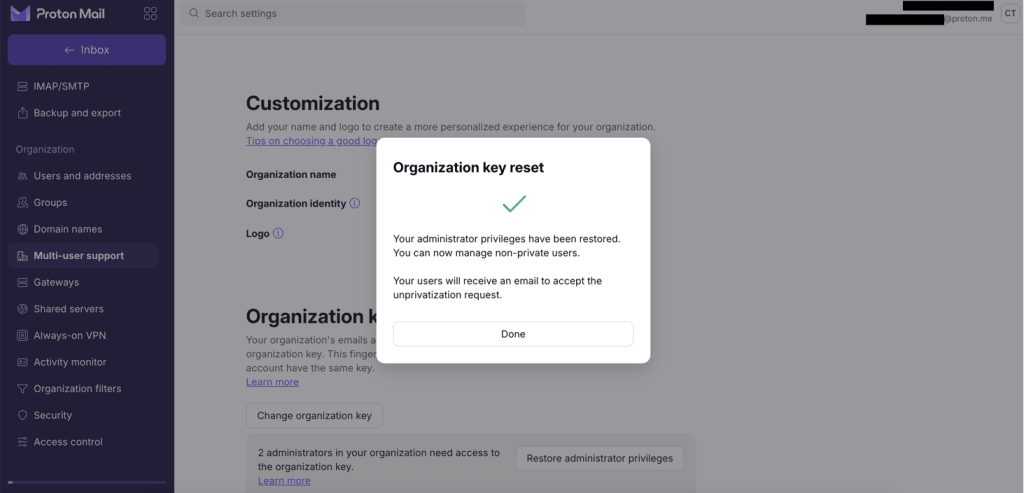
After the reset
Your full administrator privileges are restored. Each converted user needs to accept the request to become non-private again:
- The user signs in and goes to their settings, where they’ll see the request.
- They click View Request, then Enable administrator access.
Once they accept, you can access their account again. Learn more about private and non-private users
How to set up an organization in Proton Mail
Step 1: Set up your custom domain(s)
Step 2: Create your organization
- Organization key
- Restoring administrator privileges (you are here)